![elentra_logo_Blue-and-Black-3.png]](https://help.elentra.com/hs-fs/hubfs/elentra_logo_Blue-and-Black-3.png?height=40&name=elentra_logo_Blue-and-Black-3.png)
The Elentra Member Support Portal enables registered users to submit support requests, communicate with the Support team, and track ticket progress. This guide provides an overview of the portal.
Accessing the Portal
The Member Support Portal is available to registered users. To access the portal, select the Member Portal link in the top right-hand corner of the Knowledge Base or access the portal directly here.
Creating a Support Ticket
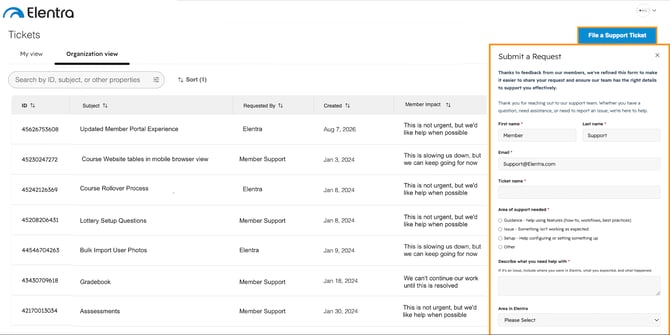
To submit a new support request:
- Select File a Support Ticket.
- Provide a clear subject and description of the issue, including relevant details and impact.
- Add attachments, such as screenshots or supporting files, when helpful.
- Submit the ticket for review by the Member Support team.
Viewing and Managing Tickets
The Member Support Portal allows you to view your support requests and your institution’s ticket history.
- Use My View to view requests submitted by you.
- Use Organization View to view tickets submitted by other members of your institution
- Track ticket progress through status updates, including:
- Submitted
- Reviewing Details
- Awaiting Member Input
- Pending Next Steps
- Next Steps Underway
- Resolved
- Closed
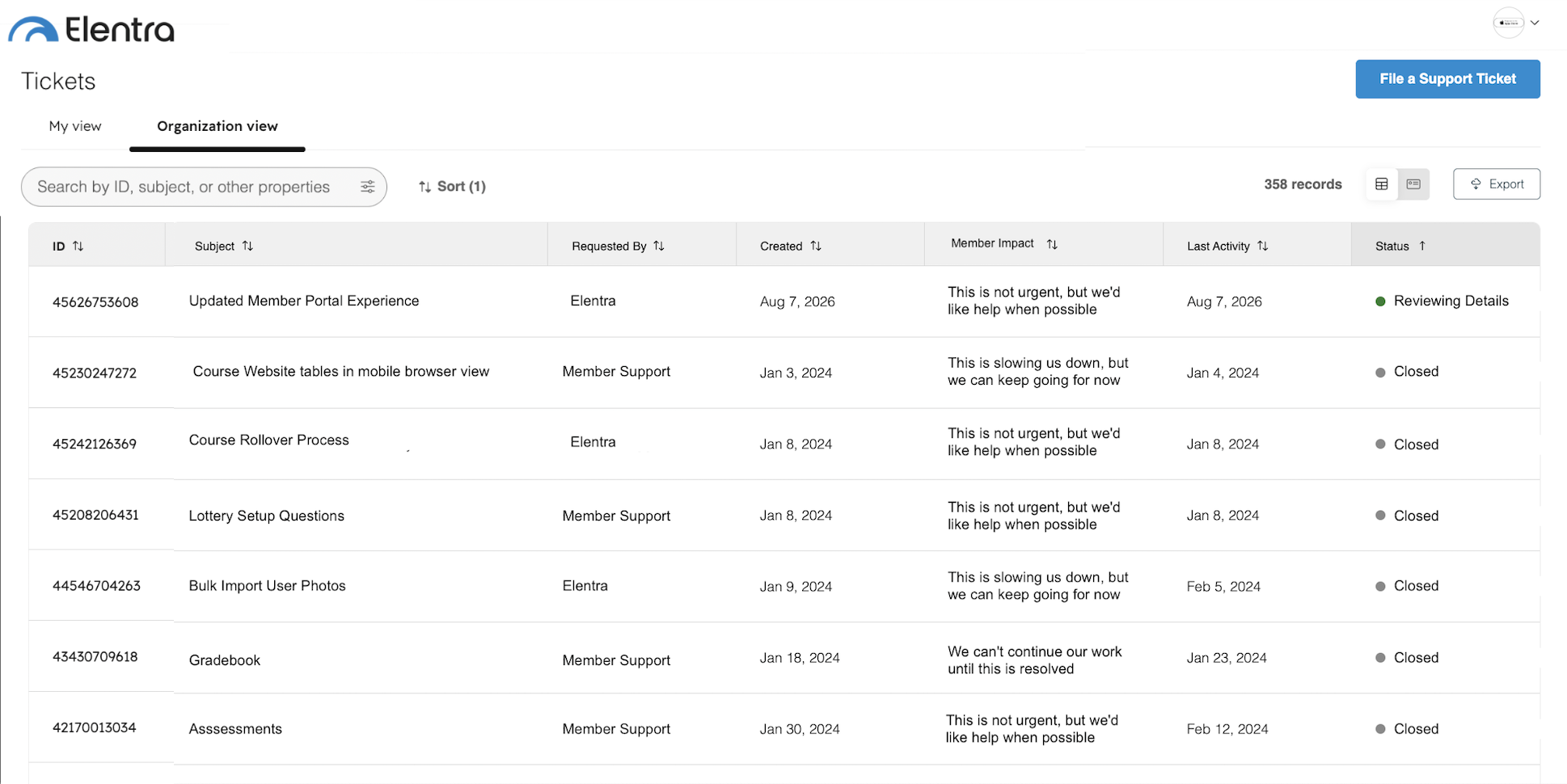
Use the available filters to quickly locate active or historical tickets.
Communicating Within a Ticket
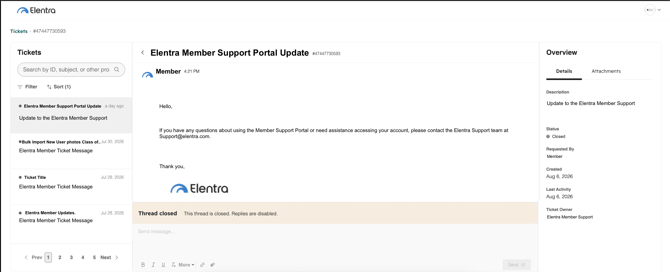
Keep all ticket-related communication within the portal to maintain a complete history of the request.
- Reply directly within a ticket to provide updates or additional information.
- Use the attachment option to securely share screenshots, documents, logs, or other relevant files.
If you have any questions about using the Member Support Portal or need assistance accessing your account, please contact us at Support@elentra.com.