![elentra_logo_Blue-and-Black-3.png]](https://help.elentra.com/hs-fs/hubfs/elentra_logo_Blue-and-Black-3.png?height=40&name=elentra_logo_Blue-and-Black-3.png)
Overview
The Dashboard Calendar is the first thing every user sees when they log in to Elentra. It sits on the main Dashboard and gives each user a personalized view of their upcoming activity, but what appears on that calendar, and how much control the user has over it, depends on which user type they are: Student, Resident, Faculty, or Staff/Medtech.
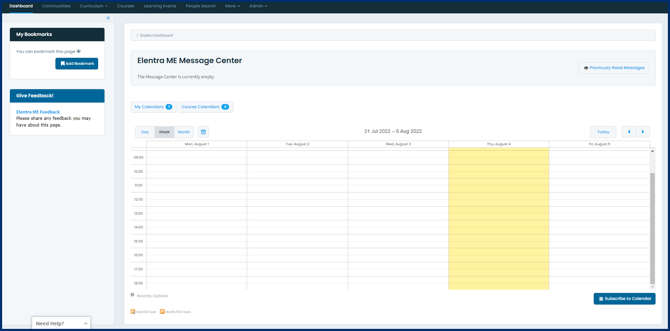
As an admin, understanding these differences will help you answer support questions like "Why can't I remove my classes from the calendar?" or "Why is my calendar empty?" — both of which are expected behavior, not errors.
A few things are true for every user type:
- My Calendars button: Every user can click My Calendars to add optional calendar feeds — such as Community Events calendars for communities to which they belong. A number badge on the button shows how many calendar feeds are currently selected.
- The calendar remembers where a user left off: Elentra stores the last date a user viewed, so when they return to the Dashboard, the calendar opens back to that same date rather than resetting to today.
- Calendar subscriptions: Users can subscribe to or download their calendar (via the Subscribe to Calendar button below the Dashboard Calendar) to view it in a third-party tool like Outlook or Google Calendar. Subscriptions only include events the user is directly a teacher or learner in — not events from optional calendars they've added, with one exception: Community Events are included in a learner's subscription if they've added that community calendar to their dashboard.
Below is how the calendar behaves for each user type.
Learners
Learners see the most populated version of the Dashboard Calendar by default, since it's built around their personal schedule.
- My Learning Events is shown automatically and cannot be deselected — learners will always see the events they're enrolled in as an audience member.
- If a learner is enrolled in a Clinical Experience course with a published Rotation Schedule, they'll also see a My Rotation Schedules button and an event bar spanning the top of their My Learning Events calendar. This will not appear for learners who have never been scheduled into a rotation. Learners can participate in Learner Driven Scheduling through the block view on their My Rotation Schedule.
- Learners may also see gradebook assignment due dates on their calendar if the instance is configured to show that on the Dashboard Calendar.
- Learners can optionally add Community Events calendars for any communities they belong to, using the My Calendars button.
Faculty
Faculty see a calendar built around their teaching responsibilities.
- The calendar automatically displays upcoming course events where the faculty user is either the teacher or an audience member, and like learners, this My Learning Events view cannot be deselected.
- Faculty have an additional option not available to learners: a Course Calendars button, which lets them add all learning events from a specific course to their Dashboard Calendar. This is useful for faculty who want visibility into a course beyond their own teaching assignments.
- Faculty can also add Community Events calendars, the same as learners.
Staff and Medtech (Admin Users)
Staff and Medtech users have a fundamentally different starting point: since these roles aren't directly enrolled as learners or assigned as teachers, the Dashboard Calendar is blank by default.
- To populate it, Staff and Medtech users use the Course Calendars button (same as faculty) to add learning events from specific courses they support.
- They can also add Community Events calendars via My Calendars, the same as other user types.
A Note for CBE-Enabled Instances
If your organization has Competency-Based Education (CBE) configured, the login experience changes for learners specifically.
- Instead of landing on the Dashboard Calendar, learners will land on their CBE Progress Learner Dashboard when they log in. This shows their EPA or Objective achievement and progress toward their program's assessment plan rather than a calendar of upcoming events.
- The Dashboard Calendar isn't gone, learners still have full access to it, they just need to click over to the My Event Calendar tab to see it.
- This change only applies to learners. Faculty and Staff continue to land on the Dashboard Calendar as described above, though those with access to My Learners will notice a related change: by default they'll see a Program Dashboard view (learner progress toward the assessment plan) when they open My Learners, rather than a calendar-first view.
Quick Reference
| User Type | Default View | Can Deselect Learning Events? | Can Add Course Calendars (My Courses)? | Can Add Community Calendars? |
|---|---|---|---|---|
| Learners | Populated (own events + rotations) | No | No | Yes |
| Faculty | Populated (teaching + learning events) | No | Yes | Yes |
| Staff / Medtech | Blank | No | Yes | Yes |