![elentra_logo_Blue-and-Black-3.png]](https://help.elentra.com/hs-fs/hubfs/elentra_logo_Blue-and-Black-3.png?height=40&name=elentra_logo_Blue-and-Black-3.png)
Article Content
Turnitin Integration Overview
Elentra supports an API integration that will allow the learner to use Turnitin Similarity via the Assignment Drop Box. Turnitin Similarity is a robust plagiarism identification tool that, when integrated with Elentra, conducts Similarity reporting on student uploads to gradebook drop boxes.
Note: Your organization must have a license for Turnitin Similarity and administrative access required for creating APIs within the TurnItIn application. Elentra does not resell Turnitin.

Turnitin Implementation
Integrating Turnitin with Elentra has two parts: generating an API key in Turnitin, then connecting that key on the Turnitin Settings page in Elentra.
Generate an API Key in Turnitin
Step 1: Log in to the Turnitin instance that will be used with Elentra.
Step 2: Select the Integrations tab from the panel on the left-hand side. This is where a new API client can be added.
Step 3: Click the Generate API Scope button and provide a name for the client. Any name can be used; however, we recommend naming it Elentra so its purpose is clear.
Step 4: Once the new API client is saved, Turnitin displays an API key. Make a note of this key, as it is only shown once and is required for Elentra to communicate with the Turnitin API.
Connect Turnitin in Elentra
The Turnitin Settings page is available to MedTech administrators, the same role that has access to System Settings. Elentra Support can also complete these steps on an organization’s behalf.
Step 5: Navigate to Admin > System Settings, select the organization, and click Turnitin Settings. The page has three panels: Enablement, Connection, and Status.
Step 6: In the Enablement panel, confirm the site switch is on, then switch on each organization that will use Turnitin. Turnitin can be on in one organization and off in another.
Step 7: In the Connection panel, enter:
- Turnitin API address: The base of the school’s Turnitin Core API, including the version path (e.g., https://schoolname.turnitin.com/api/v1). The host on its own will not work, and the page will flag it.
- API key: The key generated in Step 4.
- Display name: Optional.
Step 8: Click Test connection. Elentra checks the credentials with Turnitin before anything is saved. If the key is wrong, it is reported as rejected; if the address is wrong, it is reported as unreachable or not an API. On success, the page shows what saving will do, including the webhook address Elentra will register with Turnitin.
Step 9: Click Save. Elentra stores the connection and registers the webhooks Turnitin uses to return Similarity Reports. No separate registration step is needed.
Step 10: Review the Status panel. A healthy connection shows Webhooks arriving and registered. Once Turnitin is enabled on gradebook drop boxes, this panel also shows when the last result arrived, how many files were sent and results returned in the last seven days, and any deliveries Elentra refused.
Maintaining the Connection
- Check now re-runs the status check.
- Repair appears beside any registration fault and re-registers the webhooks.
- If the Status panel reports a problem, it includes a short code to quote when contacting Elentra Support.
- Rotate signing secret issues a new signing secret and re-registers the webhook with it.
- The page shows whether a key and secret are stored, but never displays their values. Connections set up before this page was introduced appear as they are stored.
Warning: Saving a different Turnitin address or API key switches the site to that Turnitin account. Turnitin no longer returns results to Elentra for submissions sent under the previous key; Elentra retires those submissions with a note learners can read. New uploads are unaffected.
Using Turnitin with Elentra Drop Boxes
Once Turnitin is connected and switched on for an organization, additional options appear when configuring gradebook drop boxes in that organization. Switching an organization off removes the Turnitin option from new assignments; Similarity Reports already received remain available.
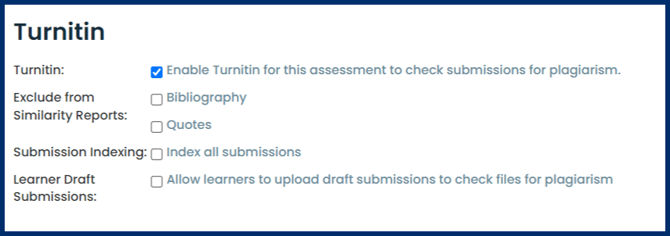
- Turnitin: Place a checkmark in this box to enable Turnitin for this assignment drop box.
- Exclude from Similarity Reports: Choose to exclude bibliographies and/or quotes from your Similarity Reports.
- Submission Indexing: When a submission is indexed by Turnitin, it is made available for comparison in future Similarity Reports. Who can match against a paper is based on your Turnitin license.
- Learner Draft Submissions: Choose to allow learners to upload draft versions of their assignments to check for plagiarism before uploading their final submission.
- If you would prefer that learners not be able to see their Similarity score, do not allow them to upload Draft Submissions. Administrators, Course Directors, and Graders will be able to see the learner's similarity score, but the learner will not be able to see it.
Admin View of Similarity Reports
To view the similarity scores and reports for learner submissions:
- Navigate to the Course Gradebook and click on the title of the Assessment.
- To the far right, you'll see a Similarity Column where you will be able to see the learner's similarity score and view the learner's similarity report.
- Click on View Report to open the learner's similarity report in a new tab.
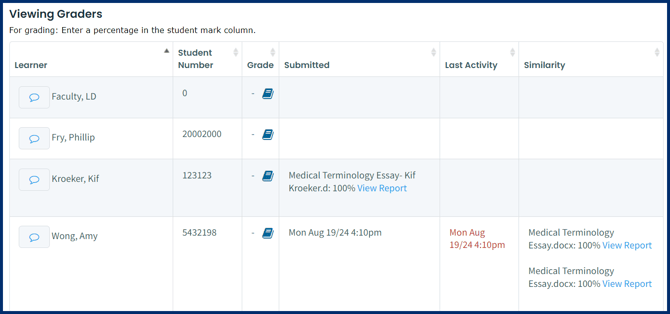
If Learner Draft Submissions has been enabled, admins will be able to see Similarity Reports generated on draft submissions, but will not be able to download or access the draft file. In the image above, Kif has submitted a draft file, and the report is available in the "Submitted" column, but no activity is listed and no file is available in the drop box. Amy has submitted a draft assignment, then the final submission, as indicated by the Last Activity timestamp and the two linked Similarity reports.
Student View of Uploading Assessments
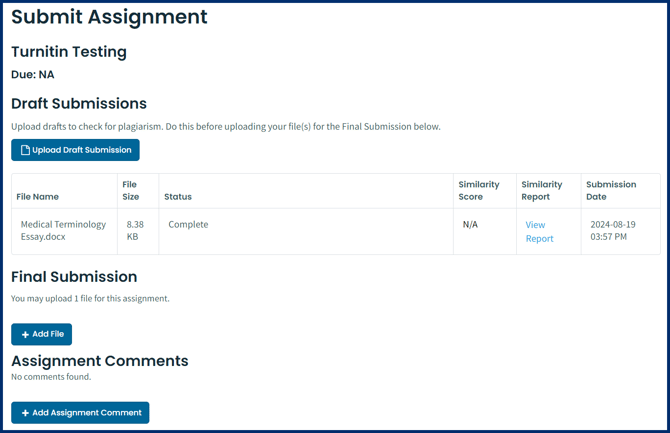
When Turnitin is enabled on a gradebook drop box, students will be required to accept the Turnitin terms of service prior to being allowed to upload files for submission.
If you have enabled "Learner Draft Submissions" learners will have the opportunity to submit assignments to Turnitin prior to uploading their final submission. Users with admin access to the related gradebook will not have access to the draft document submission(s), but will have access to the reports generated for those documents from within the gradebook.
Warning: Students who submit draft assignments to Turnitin will see a green check in their Assignments page indicating they have submitted a document. Draft documents are not available to graders or administrators. Students must submit a document in the "Final Submission" section of the drop box in order to submit a file for grading.