![elentra_logo_Blue-and-Black-3.png]](https://help.elentra.com/hs-fs/hubfs/elentra_logo_Blue-and-Black-3.png?height=40&name=elentra_logo_Blue-and-Black-3.png)
Learner Driven Scheduling Overview
Learners in Elentra who are eligible to enroll in an elective will have the ability to request a spot in the rotation during an available time period, using a feature called Learner-Driven Scheduling. Learners will see their existing clinical placements from the Rotation Schedules tab on their dashboard. From this area, learners can navigate to the Block view to see open times in their rotation schedule bookings, and view available elective rotation spots. Learners can request a space in an elective & see the status of their request from that screen. Learners can also drop elective rotation bookings before the rotation is due to start, allowing the learner to create and manage their unique elective schedule.
Note: Some institutions do not use the Elentra Learner-Driven Scheduling features. If no courses are configured to be scheduled via Learner-Driven Scheduling, learners will not see any request options when viewing their Rotation Schedules tab from the Block view.
Access Your Rotation Schedule Bookings
As a learner, if you have been booked into any rotation, you will see a tab on your Elentra Dashboard called Rotation Schedule. Click on this tab to view your current rotation schedule.
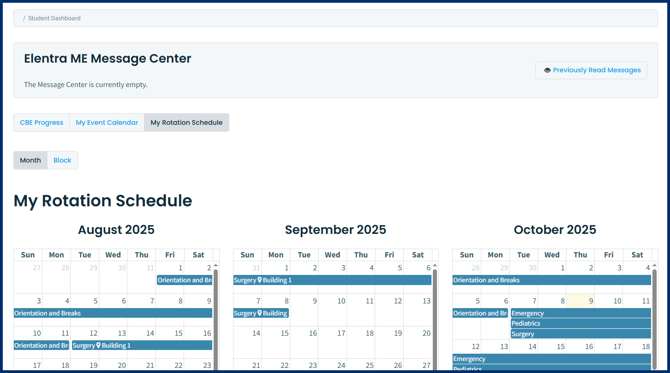
By default, you will land on the monthly calendar view of your schedule. Toggle the view into the Block view to see your rotations on a linear view & view availability of electives during your unscheduled time.
From the block view, you will see your current rotation placements on a scrollable linear calendar view, divided into blocks. The length of the blocks depends on how your institution has chosen to configure clinical blocks of time.
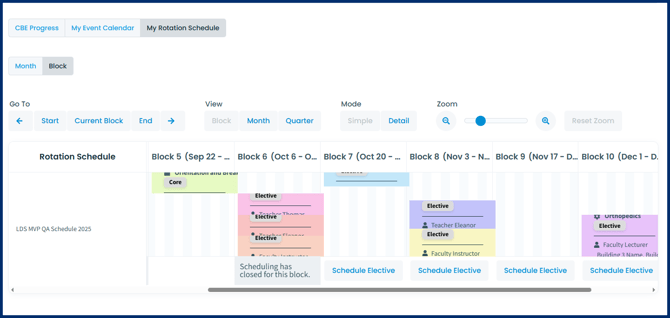
Above the block view are tools that will help you visualize your schedule in different ways:
- Go to the start, today, or end of the rotation schedule using the available buttons.
- Toggle from block to month to quarter view if desired.
- Toggle between "Simple" and "Detail" display views:
- The "Simple" display will show the course & rotation code, rotation name, and site(s) and preceptor(s) assigned on the booking, and rotation status (if applied to the booking).
- The "Detail" display will include the "Simple" display details, as well as the rotation dates, & subdiscipline (if applied to the booking).
- Zoom in or out as desired. Note the option to reset the zoom.
- Click on an existing rotation booking to view its details, and drop the elective if the block has not yet started.
If a block has begun, you will see a message indicating that scheduling has closed for that block. Future blocks will display a button labeled ‘Schedule Elective’. To get started, click on ‘Schedule Elective’ in a future block. A list of electives available during the selected block will appear below your current schedule.
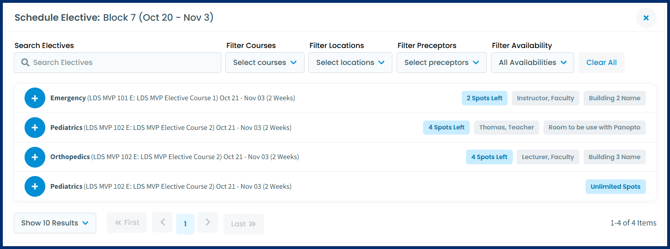
Note the tools at the top to help you filter to relevant options:
- Search for an elective
- Filter for a specific course, location, preceptor, or availability status.
- Note that locations & preceptors are not necessarily available on all elective options- this will depend on how your institution’s administrators configured the elective options.
- Utilize the ‘Clear All’ button to clear all filters from the view.
Use the + button to request the rotation booking. It will immediately appear on your calendar into the default status as configured by your institution. Once requested, an administrator is responsible for confirming or rejecting your booking request. Once confirmed, the rotation status will update to Confirmed. If your request is rejected, the placement will be removed from your calendar.
Note: There are no notifications sent when a request is confirmed or rejected. Check this view periodically to see the status of your requested elective booking.