![elentra_logo_Blue-and-Black-3.png]](https://help.elentra.com/hs-fs/hubfs/elentra_logo_Blue-and-Black-3.png?height=40&name=elentra_logo_Blue-and-Black-3.png)
Article Content
This article covers the following topics. Click on the topic to go to that section of the article.
Introduction
Team-Based Learning (TBL) in Elentra allows you to participate in interactive, team-oriented learning activities as part of your course. The TBL module provides an online environment where you can complete readiness assurance tests, collaborate with your team, and engage in application exercises, just as you would in a classroom-based TBL session.
This article will show you how to access and use the TBL tools in Elentra as a learner. You will learn how to join a TBL event, complete your individual readiness assurance test (iRAT), participate in your team or group readiness assurance test (t/gRAT), and view your results once the session is complete. The TBL module utilizes both the Events module and Exam module in Elentra.

How to Access and Participate in a TBL Event and Exams
Accessing the TBL Event and Exams
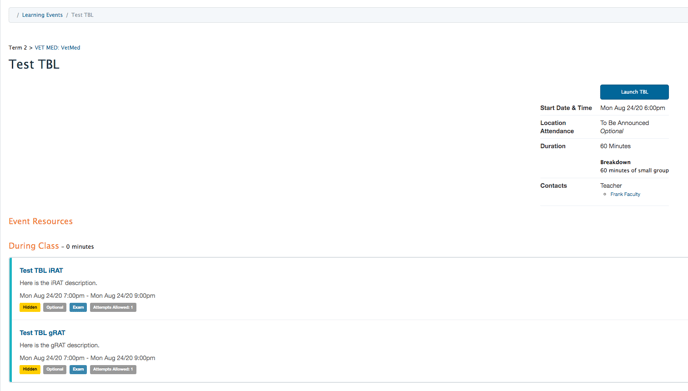
Step 1: Navigate to the event. This can be done through the Dashboard calendar, Learning Events tab, or possibly the course website if one exists.
Step 2: After accessing the event, click the “Launch TBL” button. A pop-up modal will appear, displaying information about each exam (i.e., iRAT & g/tRAT) and allowing you to start either the iRAT or the g/tRAT. Typically the iRAT is taken before the g/tRAT.
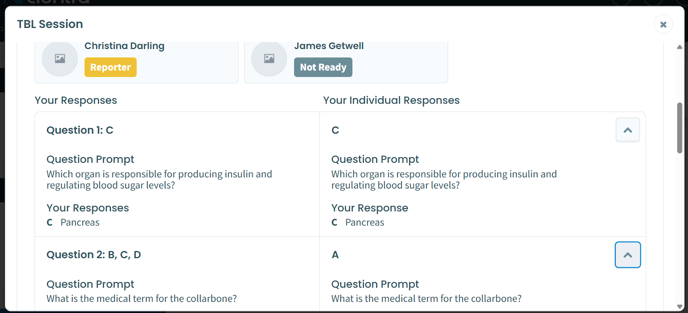
The pop-up modal allows learners to:
- View individual and group responses after each Readiness Assurance Test (RAT).
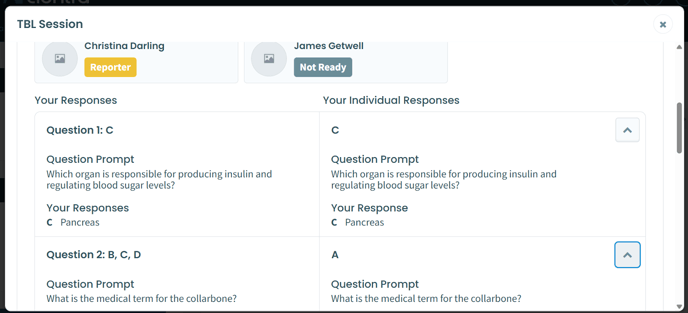
- See group member names and readiness status.
- Claim the reporter role.
- Start each exam.
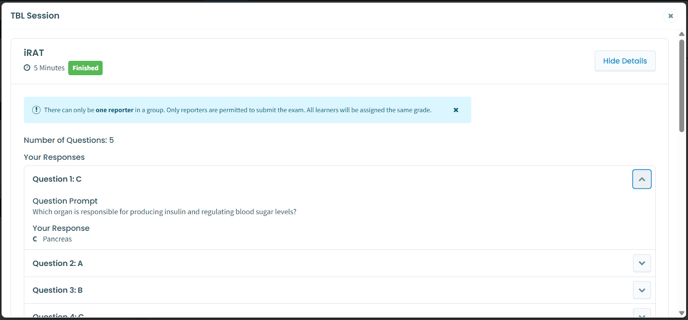
The “View Details” button on the pop-up modal provides information on the number of questions, responses, group membership, and group member readiness.

Taking Each Readiness Assurance Test (RAT)
Step 1: Start the Exam
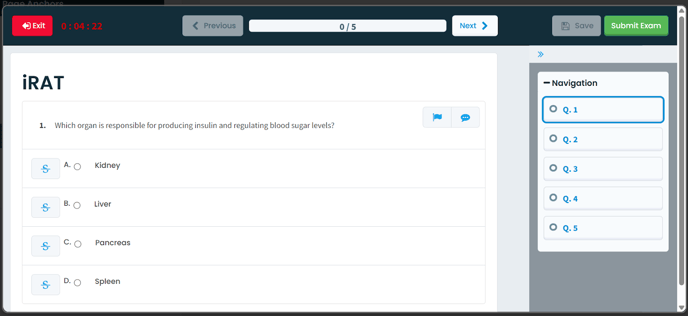
Click the “Begin” button to start the RAT. This applies to either exam, but for the g/tRAT one learner per group must identify in Elentra as the designated answer reporter.. A window will open with the RAT displayed. Complete the questions, noting the timer in the top left.
Exam Experience
The exam experience for the iRAT is slightly different from the g/tRAT. The differences are outlined below.
|
iRAT Experience |
g/tRAT Experience |
|
|
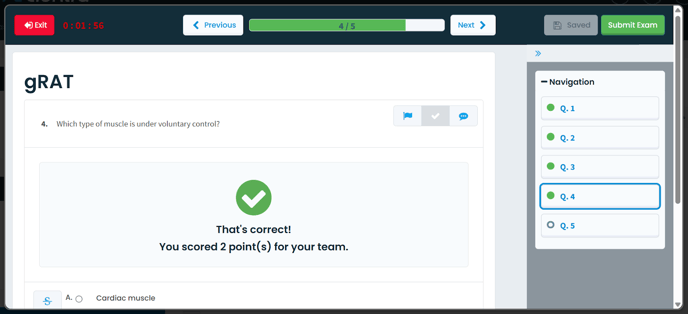
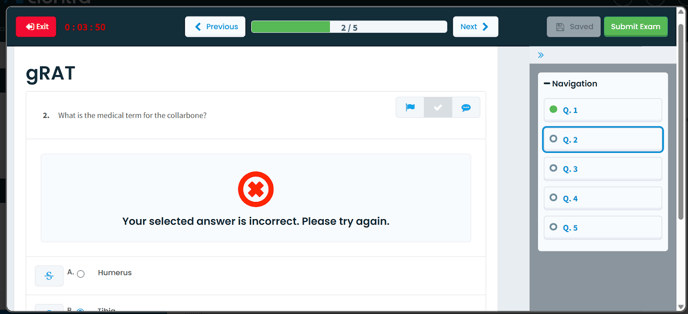
Step 2: Submit Exam
Once all questions are answered, click the “Submit Exam” button. A confirmation message will appear to confirm that the exam has been submitted.
Step 3: Review Your Submission
After submitting an exam, learners can view their completed RATs, labeled "Finished." To review their answers, they should click "More Details" for each exam that is completed and then click the chevron icon next to each question. The iRAT will show the question prompt and the learner’s response. The g/tRAT will show the group’s responses alongside their iRAT.