![elentra_logo_Blue-and-Black-3.png]](https://help.elentra.com/hs-fs/hubfs/elentra_logo_Blue-and-Black-3.png?height=40&name=elentra_logo_Blue-and-Black-3.png)
Article Contents:
This article covers the following topics. Click on the topic to go to that section of the article.
Elentra provides learners with a centralized platform to manage, track, and complete various assessment and evaluation activities throughout their education. This guide summarizes how learners can navigate to and interact with Assessment & Evaluation forms, Exams, Team-Based Learning (TBL) events, Clinical Logbooks, Gradebook assignments, and overall grade reports.
Assessment & Evaluation Forms
Learners can quickly manage their forms by clicking the Assessment & Evaluation Task icon (bulleted list icon) in the upper right-hand corner of the screen next to the user profile icon.
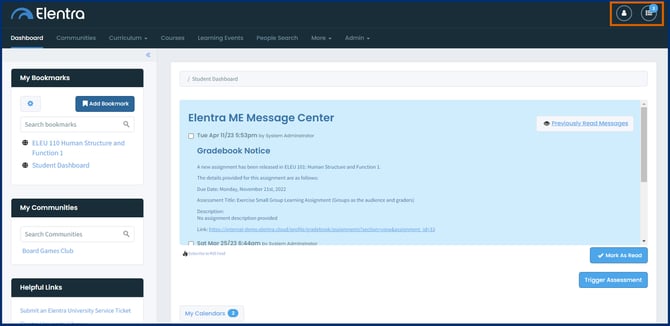
From the A&E task list, learners can complete forms assigned to them, and review forms that were completed upon them (if released to the learner).
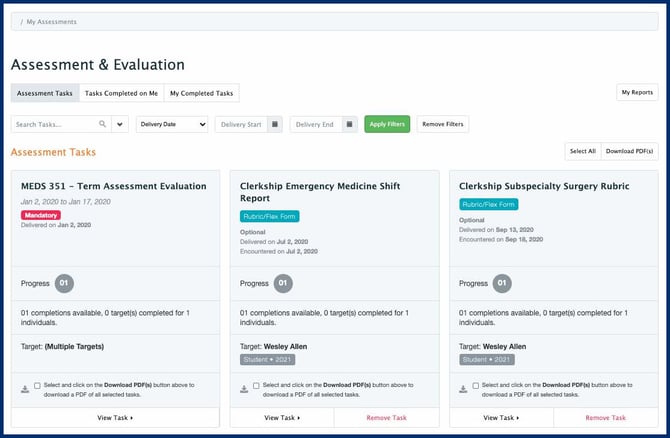
- Assessment Tasks: Displays all pending forms assigned to the learner. Click View Task to complete a form, Remove Task to decline/remove a form with a reason (if permitted), or select task checkboxes and click Download PDF(s) to save form copies.
- Tasks Completed on Me: Contains forms completed by faculty or preceptors assessing the learner (subject to administrator release permissions). Clicking My Reports allows learners to generate aggregated performance reports across date ranges.
- My Completed Tasks: Displays a history of all forms submitted by the learner, with options to download single or multi-file PDFs.
- Tasks Waiting for an Assessor: Tracks learner-initiated on-demand assessments, adhoc requests, and pending preceptor evaluations. Deleted tasks also appear here so learners can see if an assessor removed a pending form.
- Reports: Generates summary reports on forms completed on the learner across custom date ranges.
For more details on the Assessment & Evaluations page, see the Knowledge Base article here.

Exams
The Exams module handles quizzes, midterms, final exams, and attestations (timed or untimed, synchronous or asynchronous). Learners can navigate to their assigned exams in 2 ways:
- User Menu: Click the User Profile Icon in the top-right corner and select Exams. A badge next to the menu item indicates the number of pending exams.
- Learning Events: Access exams directly from scheduled learning events in the Event Resources section.
For more information on navigating exams, see the Knowledge Base article here.
Team-Based Learning (TBL) Exams
Elentra supports Team-Based Learning events, combining individual testing, team collaboration, and immediate feedback. TBL-style exams are only accessible from the learning event that the exam has been posted to.
Step 1: Open the scheduled TBL event via the Dashboard Calendar or Learning Events tab and click Launch TBL.
Step 2: For individual exams (often taken before the group exam), click on the Begin button when instructed to begin the exam. For group exams, one team member self-identifies as the reporter by clicking on the I'm the Reporter button to submit answers on behalf of the group. The reporter will then click on the Begin button to start the group exam.
For more details on taking TBL exams, see the Knowledge Base article here.
Logbook
The Logbook allows learners to record clinical encounters, symptoms, and procedures witnessed in the context of a clinical placement. Click the User Profile Icon in the top-right corner and select Logbook. 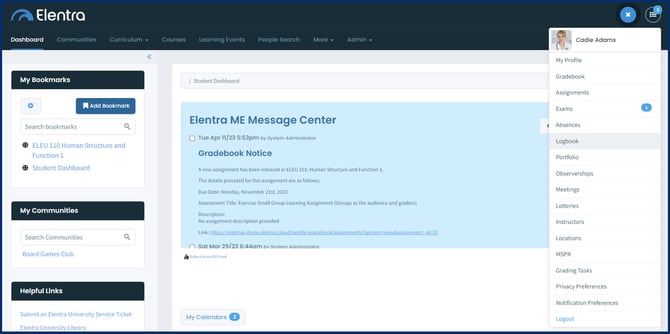
Select a course to view the applicable logbook entries using the drop-down course selector. Click on Log Entry to begin logging an entry for the selected course.
For more details on logbooks, see the Knowledge Base article here.
Assignments
Assignments are for assessments where the learner is expected to upload file(s) as a part of the activity to a personal drop box. Learners can access all course assignment drop boxes in one location on the Assignments page. To navigate there, click the User Profile Icon in the upper right-hand corner of the screen and select Assignments.
Select an assignment to open its drop box, where you can upload assignment files using the Add File button or drag-and-drop area, upload file revisions if allowed, and leave notes for graders in the Assignment Comments section.
For more details, see the Knowledge Base article here.
Gradebook
The Gradebook keeps learners informed of their evaluation breakdown, course progress, and cumulative curriculum performance. Click the User Profile Icon in the top-right corner and select Gradebook to open the My Gradebooks page.
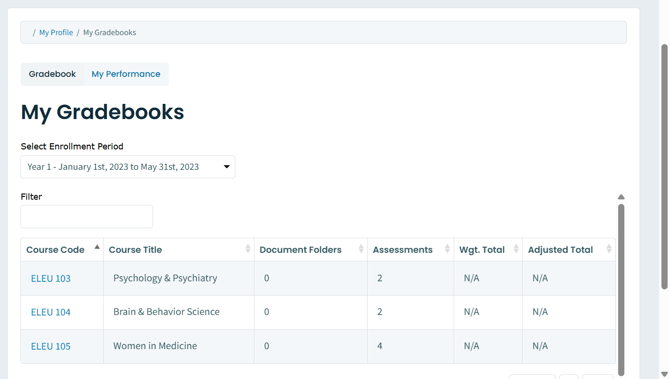
- Use the Enrollment Period filter to navigate to the relevant curriculum period.
- Click on any hyperlinked course row to view all released assessments in a table showing title, mark, weighted mark, type (summative vs. formative), and class mean/median.
- Click the My Performance tab on the My Gradebooks page to view cumulative progress across terms and academic years.
For more details, see the Knowledge Base article here.