![elentra_logo_Blue-and-Black-3.png]](https://help.elentra.com/hs-fs/hubfs/elentra_logo_Blue-and-Black-3.png?height=40&name=elentra_logo_Blue-and-Black-3.png)
Article Content
This article covers the following topics. Click on the topic to go to that section of the article.
Distribution Overview
Note: A distribution is only saved once all five steps of the wizard are complete. You can navigate forward and backward in a distribution using the Previous Step and Next Step buttons. You can cancel a distribution at any time by clicking Cancel.
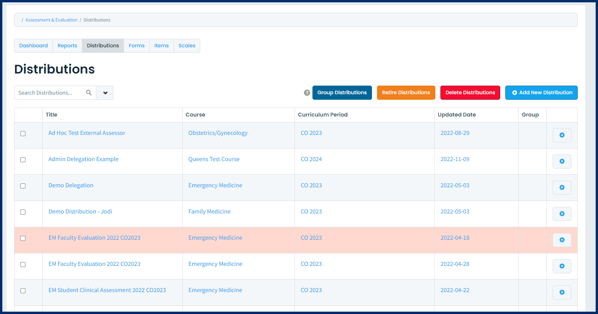
Click on Add New Distribution to begin the creation wizard. More details on creating different distribution types are in ensuing articles. Alternatively, copy an existing distribution by clicking on the Cog icon to the right of the distribution title. Edit the information in each step of the distribution wizard as needed and save your work. Further details about the 5 steps of the distribution wizard are described in the sections below.

Step 1: Form
On this step you define some basics like which form you are going to send out, and the relevant course and curriculum period.
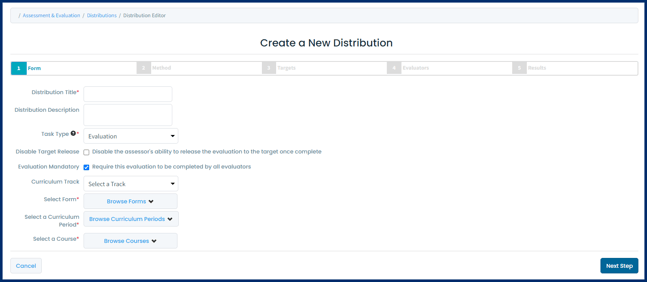
-
Task Expiry: Check this to apply an expiry date to tasks. After the expiry date has passed, users will no longer be able to complete the task.
-
Delay Task Creation: This option enables users to delay the sending of the distribution task which is currently being created until assessments from a previous distribution(s) were completed first.
-
Select a distribution (be aware that you will only see distributions to which you have access).
-
Define how many tasks must be completed in the linked distribution(s) before the new distribution will take effect.
-
Enter a fallback date. This date represents when your distribution will create tasks whether or not the minimum number of tasks have been completed in the linked distribution.
-
You can adjust the fallback date on the fly and the distribution will adjust accordingly to only generate tasks as appropriate (previously created tasks will still remain).
-
If you set a fallback date that falls before the release date, the fallback date will be ignored.
-
-
- Other options will display depending on the type of distribution being built and are detailed in each of their respective articles.
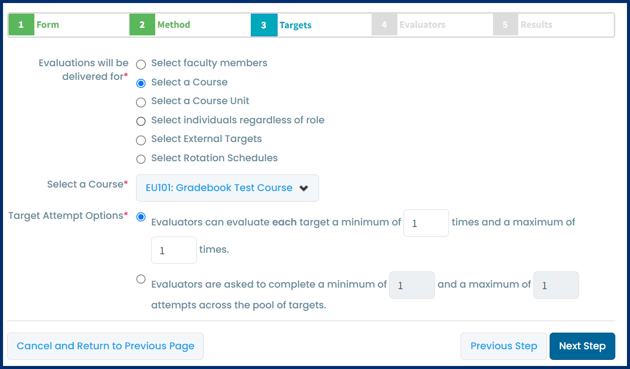
Note: You'll only see the option to set the rotation or faculty member as a target if you are creating an evaluation.
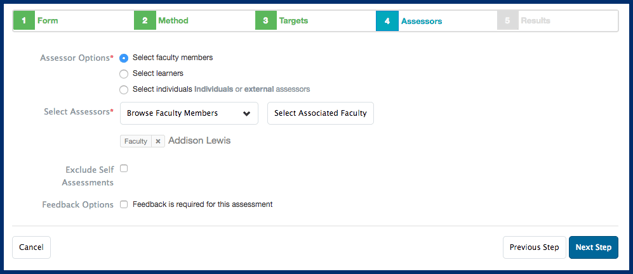

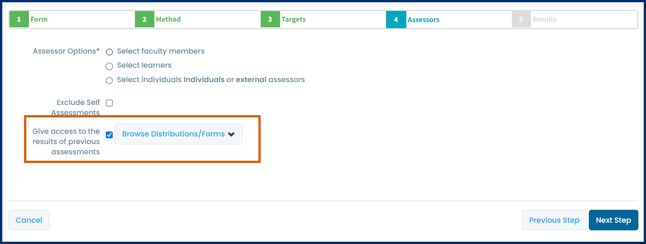

-
Distributions are automatically accessible to all users with staff: admin group and role permissions.
-
Adding a course permission will make the distribution show, without filters applied, to program coordinators and faculty directors associated with the course.
-
Adding an org. permission will make the distribution accessible to anyone with administrative access to Assessment & Evaluation. (Note that most users will need to apply filters to access the distribution.)
- Task List Release: "Targets can view tasks completed on them after meeting the following criteria" can be useful to promote completion of tasks and is often used in the context of peer assessments. Targets will only see tasks completed on them after they have completed the minimum percentage of their tasks set by you.
- Target Self-Reporting Release: This controls whether targets can run reports for this distribution (i.e. to generate an aggregated report of all responses). When users access their own A+E they will see a My Reports button. This will allow them to access any reports available to them.
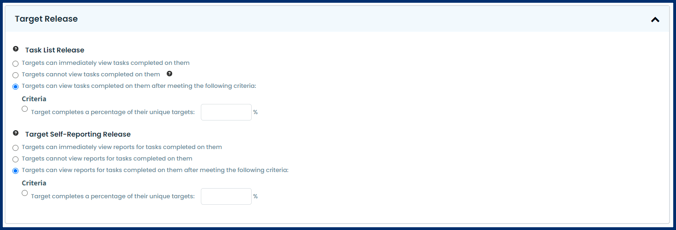
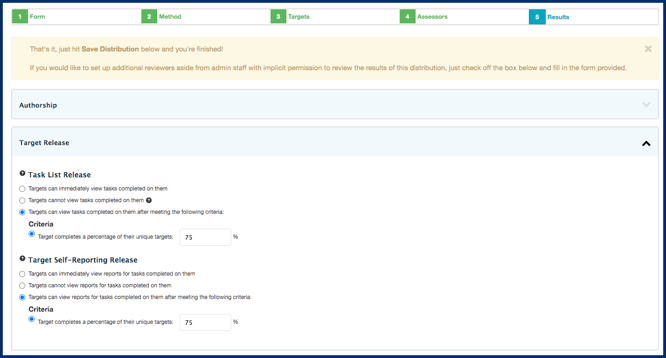
Please be aware that these settings are specific to a single distribution only. This tool does not require users to have completed a percentage of tasks across all distributions.

- Check off the box to enable a reviewer.
- Click Browse Reviewers and select a name from the list. Note that this list will be generated based on the course contacts (e.g. director, curriculum coordinator) stored on the course setup page.
-
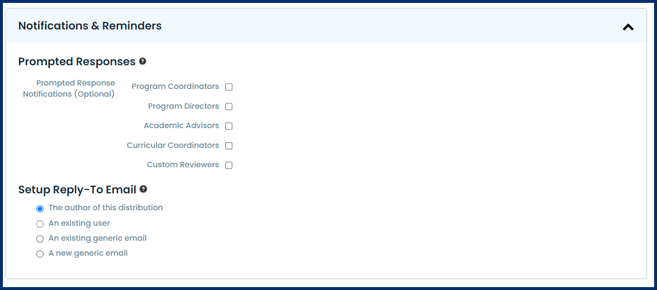
Prompted Responses: This allows you to define whom to send an email to whenever a prompted response is selected on a form used in the distribution. For example, if you have an item asking about student completion of a procedure and "I had to do it" was set as a prompted/flagged response, any time "I had to do it" is picked as an answer an email notification will be sent.
-
You can optionally select to email Program Coordinators, Program/Course Directors, Academic Advisors, Curricular Coordinators, or you can add a Custom Reviewer. If you select to add a Custom Reviewer you can select their name from a searchable list of users.
-
-
Setup Reply-To Details: Define the email address that the notification email recipient will see if they reply to the notification email.
-
Options are the distribution author, an existing user, an existing generic email, or a new generic email.
-
To create a new generic email provide a name and email address. This will be stored in the system and available to other users to use as needed.
-
Note: Delegation distributions will see the Reply-To field vary. The delegator will see the Reply-To field in their email notification as the one configured on step 5 of the distribution. Assessors/Evaluators who are delegated a form will see the Reply-To field configured as the delegator's contact information.
Manage Distribution Tasks
From the Distributions dashboard, click on the cog icon to the right of the distribution you want to review. Select View Distribution Report to view the following screen:
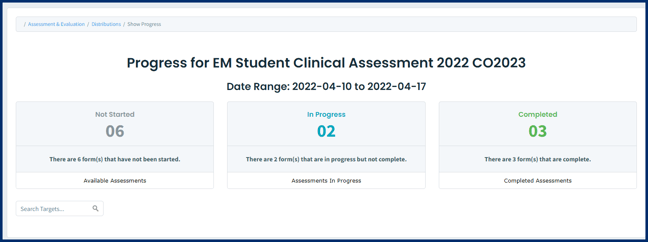 Click on any category (Pending, In Progress, Completed) to view more details about specific targets and assessors below the progress tiles.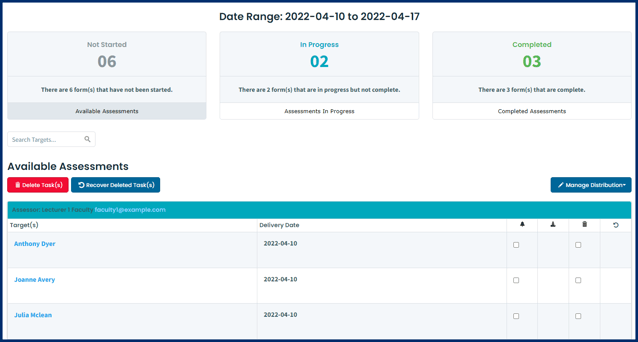
Manage Tasks by Individual
Retiring and Deleting Distributions