![elentra_logo_Blue-and-Black-3.png]](https://help.elentra.com/hs-fs/hubfs/elentra_logo_Blue-and-Black-3.png?height=40&name=elentra_logo_Blue-and-Black-3.png)
Article Content
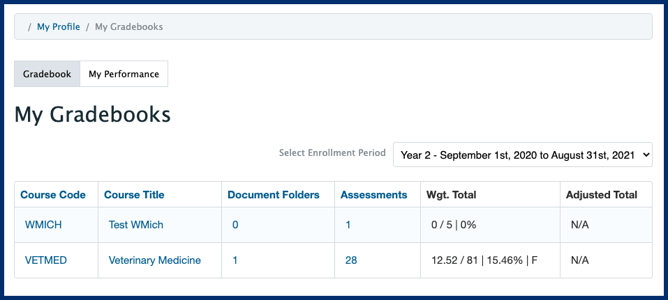
Note: The learner's Adjusted Total will only display if the database setting gradebook_adjusted_grades_enabled is in use. If it is, administrative users of the gradebook can enter an adjusted grade. This might reflect a student's completion of a professionalism requirement or something similar. Learners will see their adjusted total as a percentage and optionally as a grading scale, as long as the course gradebook has a grading scale defined. Contact Elentra Support to request this to be enabled.
-
the assessment title (sorted by collection if applicable),
-
their mark (shown as marking scheme, grading scale or percentage depending on how the assessment was set up),
-
weighted mark
-
assessment type (i.e., formative or summative)
-
the class mean and median (note that these can be hidden by making a change in the code).
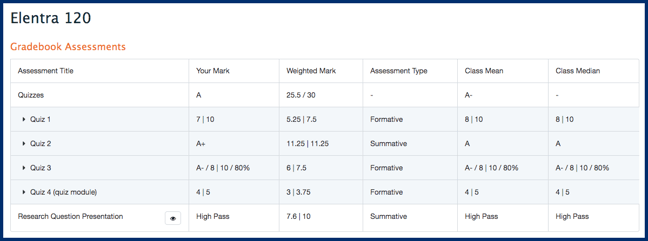
Note: You can control whether learner's see the Class Mean and Class Median in their gradebooks using a database configuration. Contact Elentra support to change this

Note: tasks completed through the Assessment & Evaluation feature are not currently displayed in the Learner Explorer.
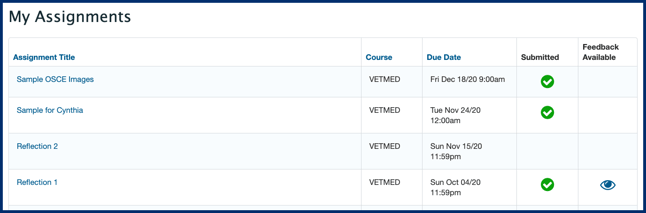
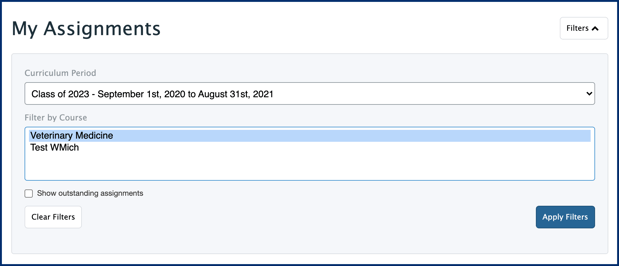
-
To filter by Curriculum Period, click on the box and select an option from the dropdown menu.
-
To filter by Course, click on a course title. Use your keyboard and mouse to select multiple courses if needed.
-
Click Apply Filters after making your selections.
-
Once filters are applied the Filter button will show the number of filters in use.
-
Click on the Filter button to adjust filters or clear existing filters.
Note: The column headers (e.g., Due Date, Submitted) in the My Assignments table are clickable so that you can easily reverse the display order.
Group Assessments and Assignments