![elentra_logo_Blue-and-Black-3.png]](https://help.elentra.com/hs-fs/hubfs/elentra_logo_Blue-and-Black-3.png?height=40&name=elentra_logo_Blue-and-Black-3.png)
Article Content
This article covers the following topics. Click on the topic to go to that section of the article.
Event Setup Page Overview
Note: The event setup page includes the basic information about an event. Much of this will be completed when creating the event, either manually or through Manage Drafts.
Below contains the details of the event setup page and all of the fields that are within it. 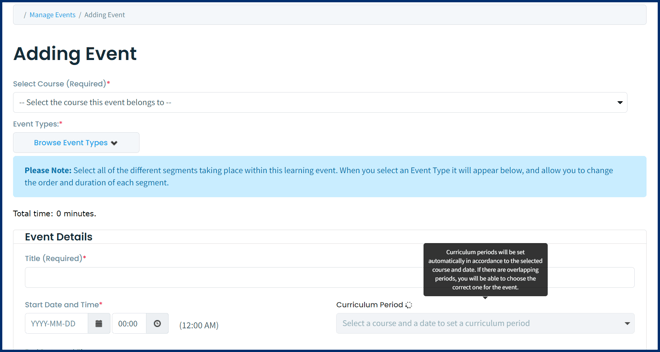
Course: All events must be associated with a course. Some organizations opt to create courses like Faculty Meetings, or Lunch and Learns so that they can add events to the calendar and not have them count towards their curricular courses.
Event Types: Define the event type; noting that you can include multiple event types within one event. Adjust their durations as needed.
- You can optionally check the box to the left of the end date and adjust the end date and time to exceed the actual duration of the event by at least 24 hours. Doing so will create a 'long event' that will be represented at the top of the learner calendar as a solid bar. Long events are intended to represent a window of time during which a learner is expected to complete a specific task. The event duration (e.g., 60 minutes) represents how long the task is expected to take and it will still display so learners know they should dedicated that amount of time to the task sometime during the long event window.
- If no curriculum period is defined for an event, and event is set to audience of all enrollees, all learners will see the event.
- If a curriculum period is defined for the event and the event is set to audience of all enrollees, only the learners enrolled in the course for the matching curriculum period will see it.
Note: Teacher's Assistance and Auditors will default to 0 and not be editable. (These roles are excluded from Annual Reports anyway.)
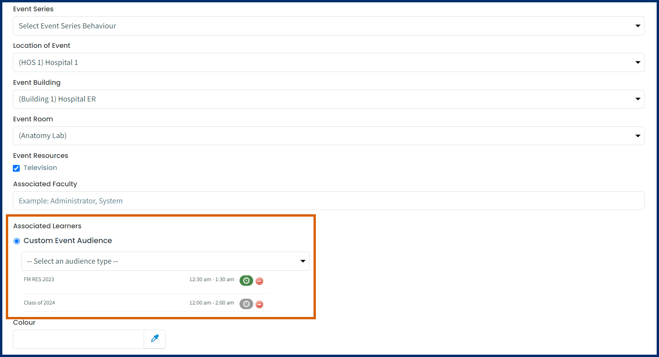
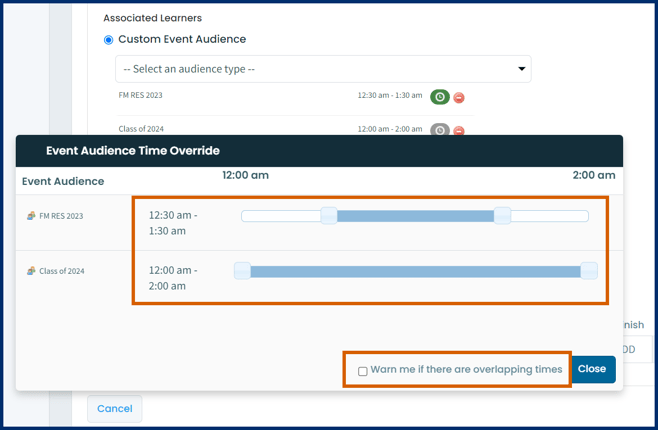

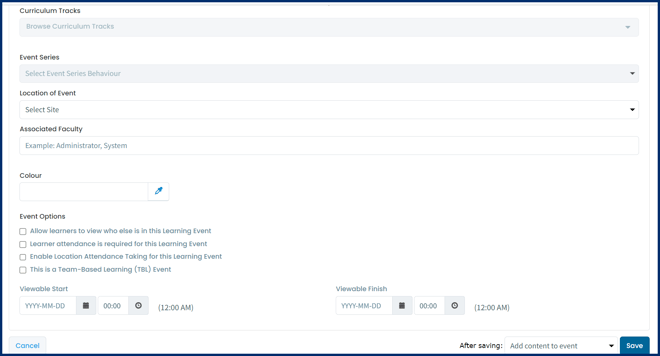
Event Options:
- Note that in Elentra, you can set viewable start and end dates for all events in a course via the course Setup tab, if the course is set to Private. Each enrollment period will have the option to time-restrict learning events and the course website.
- Note that you can apply time release options to specific resources when adding them to learning events; which is distinct from time-releasing the event itself.