![elentra_logo_Blue-and-Black-3.png]](https://help.elentra.com/hs-fs/hubfs/elentra_logo_Blue-and-Black-3.png?height=40&name=elentra_logo_Blue-and-Black-3.png)
Article Content
This article covers the following topics. Click on the topic to go to that section of the article.
- Item Overview
- Item Types
- Tag A&E Items
- Create Grouped Items
- Validate Numeric Items
- Retiring and Deleting Items
Any forms used for assessment and evaluation require form items (e.g., questions, prompts, etc.). Elentra supports a wide variety of item types, not all of which have the same functionality.
Note: If you are creating items for a form to be attached to a course gradebook assessment for the purpose of online grading using a dropbox, please note that not all item types are supported because there is no structure to weight them on the form added to the gradebook assessment. In such cases, it is recommended that you only use multiple choice, dropdown selector, rubric and scale items (created as group items).
If your form requires narrative comments do not use the free text comment item type, as the grader will not be able to save their comments. Instead, allow or require comments on your scale or rubric items and encourage graders to provide feedback within the rubric or scale item.
Note: You can copy existing items which may save time. To copy an existing item, click on the item and click Copy Item which is beside the Save button.
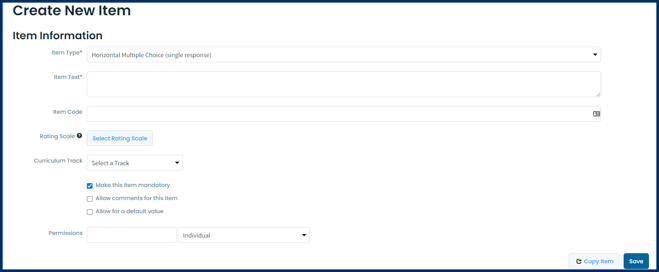
- Comments are optional will allow optional commenting for any response given on this item.
- Require comments for any response will require a comment for any response given on this item.
- Require comments for a prompted response means that for any response where you check off the box in the Prompt column, a user will be required to comment if they select that response.

Item Types
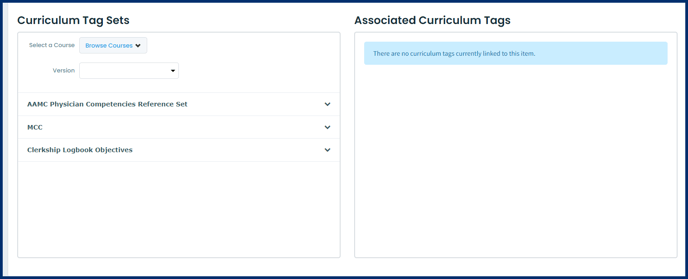
- To begin you select a curriculum tag set.
- For a tag you want to be available to be assessed on a form, you add 4 response descriptors (e.g., Excellent, Needs Improvement) and corresponding level of competency descriptions.
- If you have a hierarchical curriculum tag set you can develop items for the bottom/most granular tags in the set.
- When you create an assessment form, you can add the relevant curriculum tag set to the form. When individuals use the form they can navigate through the tag set and select the appropriate tag to assess.
Note: Confidential Free Text Comment item text will display to targets, if the distribution has permitted the target to generate reports on the distribution responses. This means that targets will see what the Item Text of the form item as configured by the administrator who built the item; however, no responses will be displayed.
Tag A&E Items
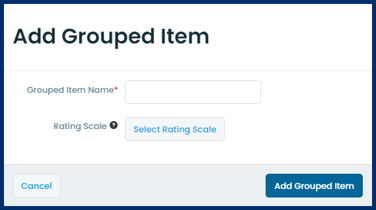
Create Grouped Items
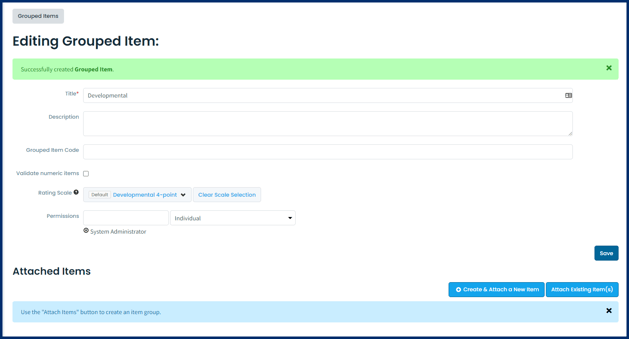
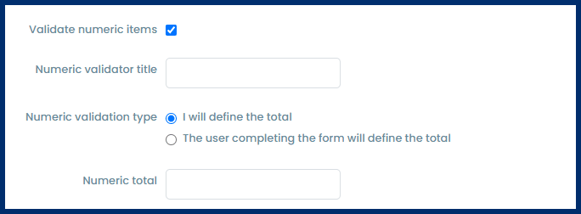
- I will define the total: This lets the item creator define the total for every time this item is used. The group will require the total to be entered in the Numeric total field.
- The user completing the form will define the total: This will allow the user to create their own total each time they use this item.
Retiring & Deleting Items
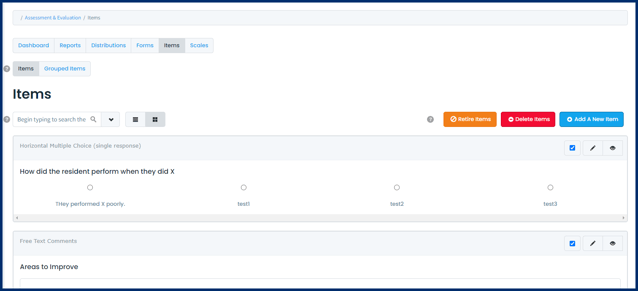
From within the Items tab, use the selector box on items, then the Retire or Delete Forms buttons, respectively.
Retiring items allows a user to manage archived and future or currently active items effectively. When users create forms they will not see retire items, however retired items will still be included in all relevant reports. Retired items will continue show in the item bank, but will have their item type highlighted red.