![elentra_logo_Blue-and-Black-3.png]](https://help.elentra.com/hs-fs/hubfs/elentra_logo_Blue-and-Black-3.png?height=40&name=elentra_logo_Blue-and-Black-3.png)
Article Content
This article covers the following topics. Click on the topic to go to that section of the article.
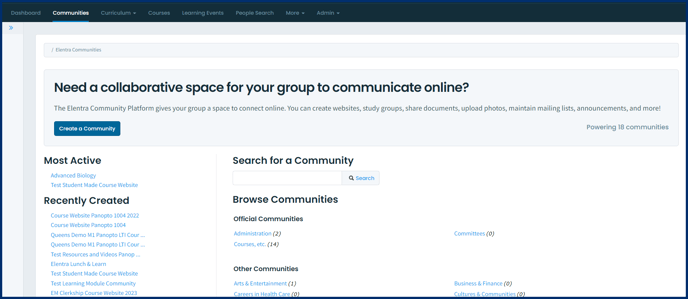
Create a Community
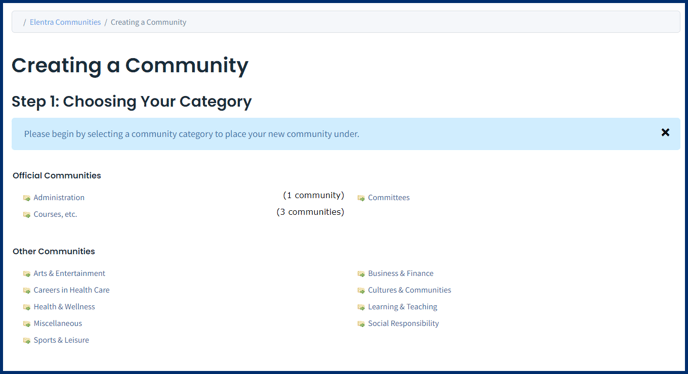
Warning: Categories may be useful to see how users are using communities, but there are no filter settings or reports that rely on these categories at this time.
Note: Categories cannot be changed in the interface, but can be adjusted by a Elentra as needed. Contact Elentra Support to update your community categories.
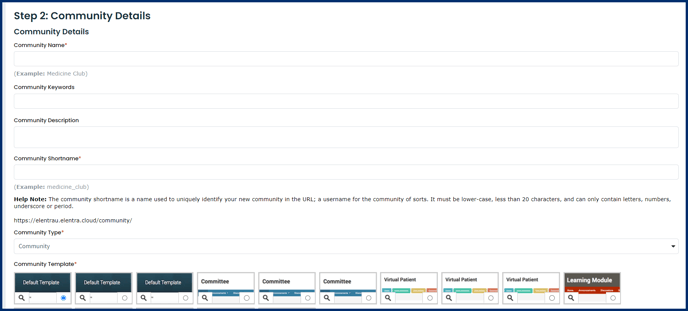
Note: We advise omitting colons from community names and using dashes instead. Colons will cause the community name to display extraneous characters in the email sender name when sending community Announcements.
Community Pages: The options displayed under Default Pages will change depending on your selected Community Type. See more information in the Community Pages Management section below. The ones that checked and greyed out are default pages and cannot be unselected.
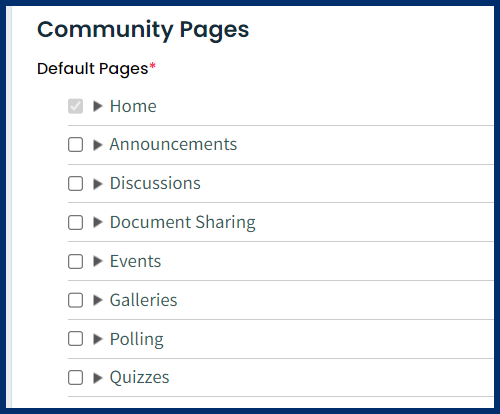
Generic Community: The only page included by default is Home. Select additional pages as desired.
Course Websites: A series of default pages are required. You will be able to add additional pages but there is no ability to delete or hide the included default pages within the UI. To change the default pages, contact Elentra Support.
Community Permissions
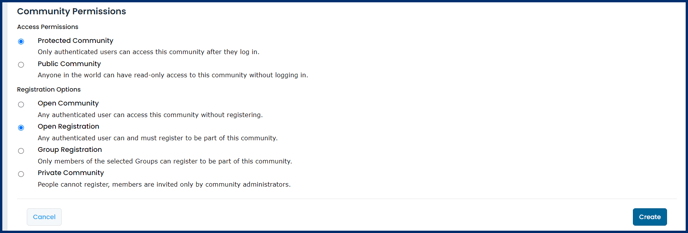
- Protected Community: Only authenticated users can access this community after they log in.
- Public Community: Anyone in the world can have read-only access to this community without logging in.
- Open Community: Any authenticated user can access this community without registering.
- Open Registration: Any authenticated user can and must register to be part of this community.
- Group Registration: Only members of the selected Groups (permission level) can register to be part of this community.
- Private Community: People cannot register, members are invited only by community administrators.
Step 3: Click Create. You will be redirected to the community and as the creator of the community can manage all pages. You'll notice an Edit button on some pages. Click on it to add or edit content on any page.

Community Pages Management
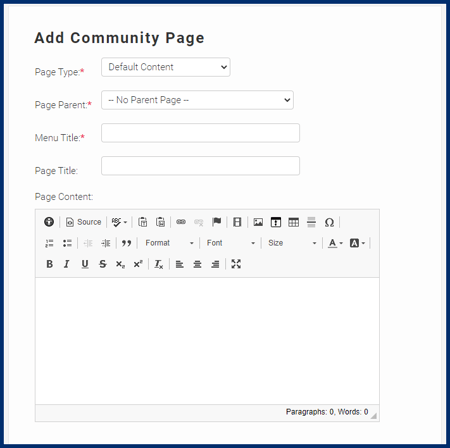
Anyone who is the administrator of a community can use various tools to manage community content and pages. If you create a community, you will automatically be a community administrator. Different pages are templated to serve different functions, and different community types come with specific page types. In most communities you can delete pages or hide them from view if they are unneeded (one exception is course websites, you are not allowed to hide or delete default pages). You can add pages of most types to any community and control which users have access to the page and how they interact with it (e.g. can upload or download files, can comment on files, time release of the page, etc.).
Adding/editing content to community pages
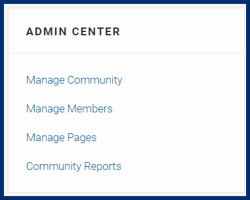
You also have access to an Admin Center card in the left or right sidebar. Click on Manage Pages to access a list of all pages in the community. From the Manage Pages page, you can
- add new pages
- reorder pages
- click on the name of the page you wish to edit
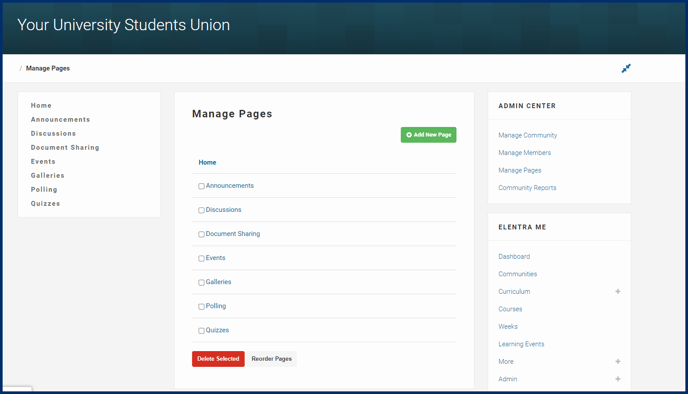
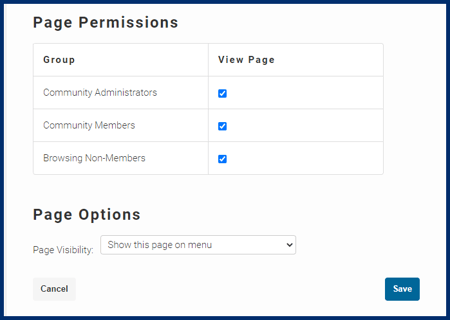
Note: In some community types (e.g., course website), the default pages can not be hidden from the menu.
Member Management
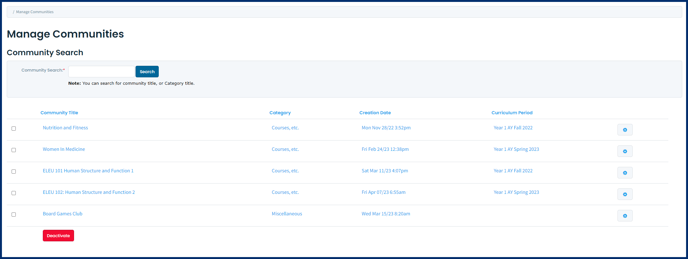
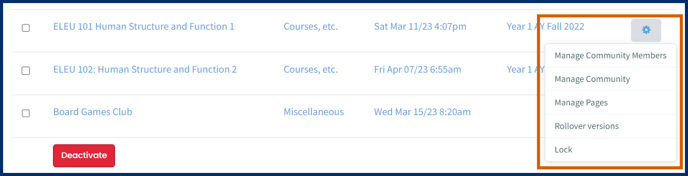
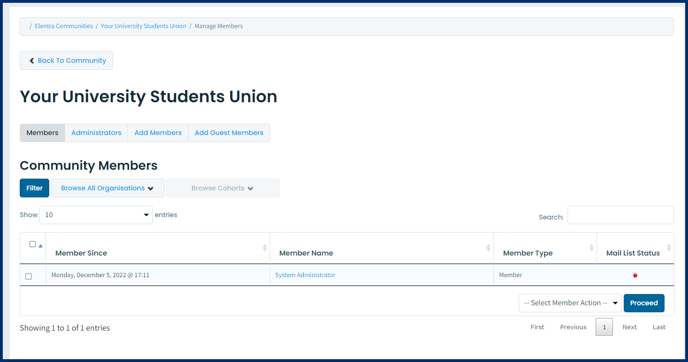
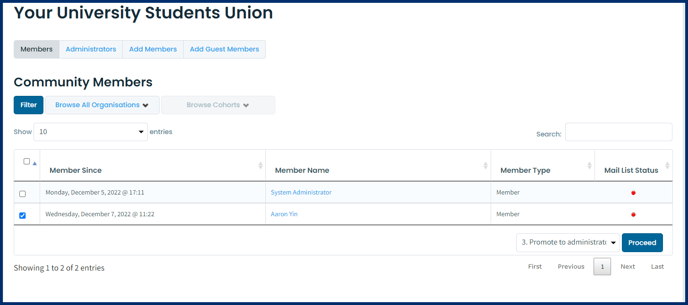
- Select the Remove members option to remove the selected members or the Deactivate/ban members.
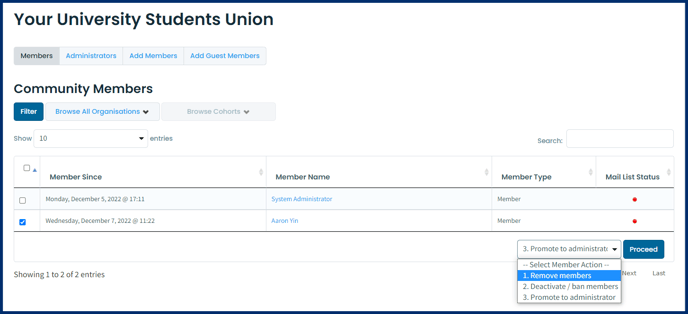
Note: Removing a member will allow that person to rejoin the community at a later date.
Deactivating/banning a user means the user will receive a message alerting them to this fact if they try to access the community and they will not have the option to rejoin.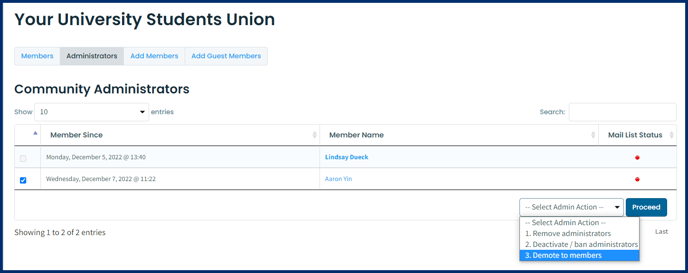
Step 2: Click Proceed.
Manage Public/Guest Account Access
Public users can't vote in polls.
Public users can't upload files or comment on files.
If you don't want community administrators to be able to add guest accounts, there is a database setting option you can use to restrict this ability to Medtech:Admin users only (community_display_guest_enrollment). Contact Elentra Support to enable this setting.
Community Management
Editing the details or permissions of a community
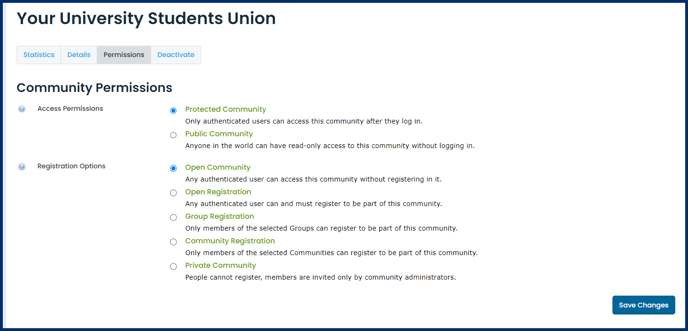
Under the Permissions tab you have the ability to change the Access Permission and Registration Options.
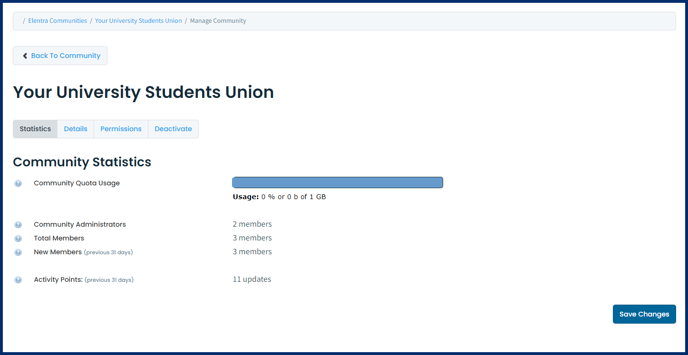
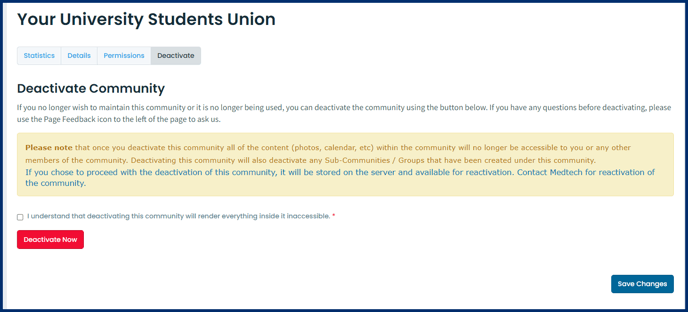
Note: Locking a community is currently only available for course websites. Please see the Knowledge Base articles about course websites for more details.