![elentra_logo_Blue-and-Black-3.png]](https://help.elentra.com/hs-fs/hubfs/elentra_logo_Blue-and-Black-3.png?height=40&name=elentra_logo_Blue-and-Black-3.png)
Article Content
This article covers the following topics. Click on the topic to go to that section of the article.
Introduction
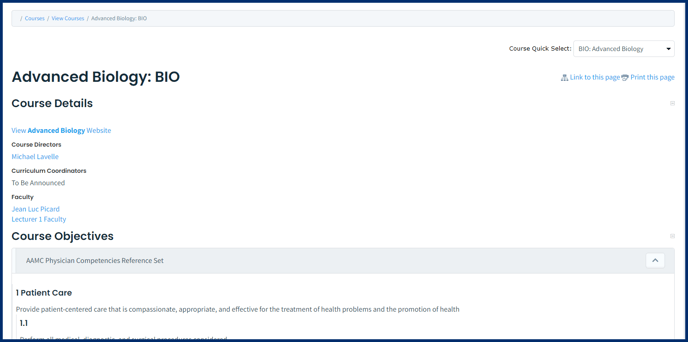
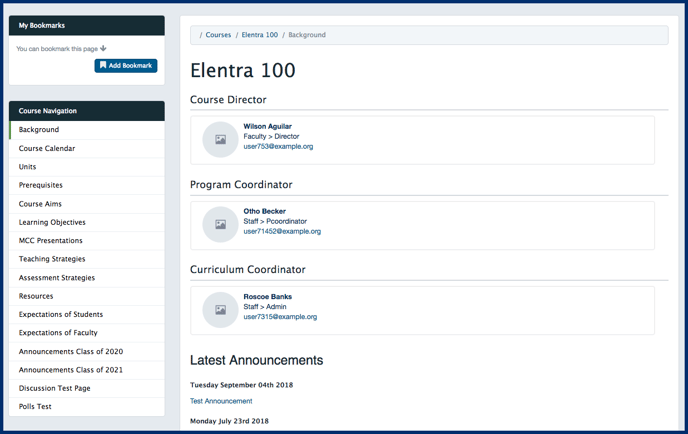
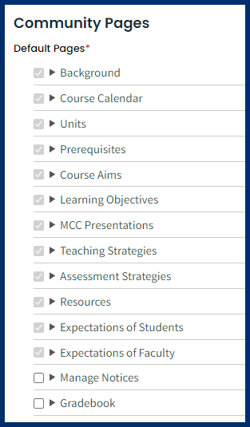
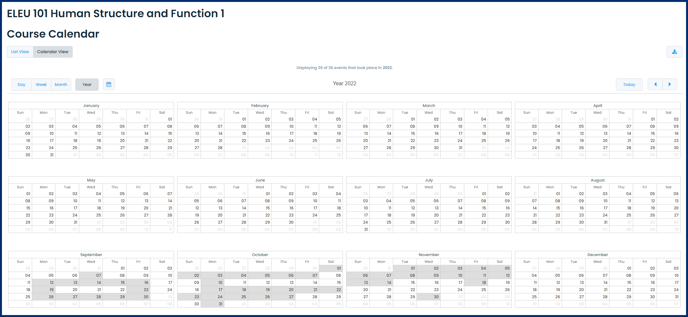
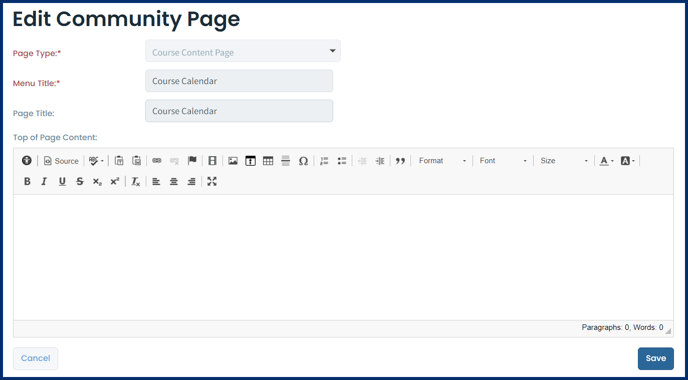
Course websites rely on a templated set of pages (e.g., background, calendar, prerequisites, etc.). The set of templated pages can be configured in Elentra. Certain pages rely on data from other modules such as the course Calendar, Background, and Learning Objectives pages. Please speak to Elentra Support if you would like to change the default set of pages that get added to a course website.
Note: You must create a course via Manage Courses before you can create a course community. You then can create the course website for one curriculum period and then from there you roll forward the course website into new curriculum periods.

Create a Course Website
Note: The list of categories can be configured by the Elentra Team for your instance of Elentra. Please contact Elentra Support if you would like the change the default category options.
- Community Name: This is a mandatory field and will show to community members.
- Community Keywords: Enter keywords that can be used for searching for the community. Keywords need to be separated by a comma.
- Shortname: This will be part of the url and will be automatically generated when you enter the community name. You can change the shortname before you create the course website, but once it is created you will not be able to edit the shortname and what shows in the course website's url.
- Community Type: Select Course Website from the dropdown menu.
- Community Template: Select the website template you wish to use. There may only be one option and it may be selected by default.
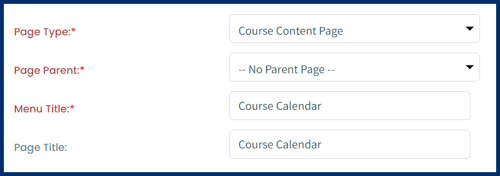
Note: Some of the course content page types rely on the name of the page & menu title in order to be able to pull in information from other parts of the system. One example of this is the Gradebook page, it must be titled as Gradebook.
Note: If a course website has ever been created for a course in any curriculum period it will no longer appear in the list. If you are wanting to create the course website for a new curriculum period then you will need to rollover the course website to the new curriculum period. This can be done by navigating to Admin > Manage Communities > Clicking on the cog wheel next to the course's name > select Rollover versions, from here you can create a new course website for the new curriculum period in the course.
Warning: If you get an error saying you must specify a Community Type but don't have the option to do so on the screen, please contact Elentra Support. It is likely due to a function of creating a second organization in Elentra via the user interface. Community types are not automatically copied into the new organization. Elentra Support can copy the community types to other organizations in your instance.
Note: Faculty directors, and curriculum and program coordinators listed in the course contacts section of a course will automatically be made administrators of the course website community with the database setting course_website_associated_faculty_admins.
Learners enrolled in a course will automatically be added to a course website if the setting course_website_autoenroll_audience is enabled. If it is not then learners will not be automatically added as members of the course and will need to be added manually.
Course Website Template Pages
There are different page types on a course website. Some can be created after the course website has been created while others cannot.
Note: The course content page is the page type that cannot be added after a course website has been created and often pulls in information from other parts of the system. If there is a course content page that you need added after the creation of a course website, please contact Elentra Support.
To learn more about the other page types please review the knowledge base article Community Page Types.
Detailed below are examples of course website pages that you may be able to include in your course website. These pages may be labeled as something different in your installation of Elentra as the page titles & menu titles may be editable. After the creation of a course website you will have the opportunity to add other pages. The type of pages you can add can be found in the knowledge base article Community Page Types.
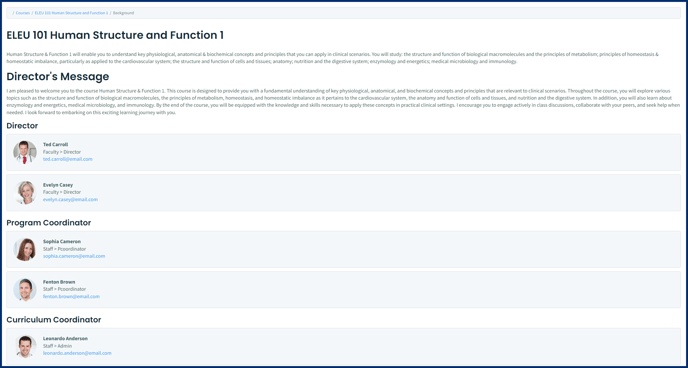
Background
Page Type: Course Content
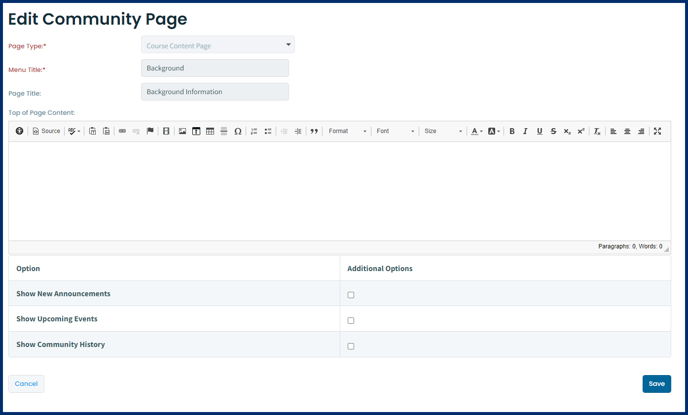
- Add any additional information at the top of the page as needed by editing the page through the Admin Centre > Manage Pages > Click on Background page and using the rich text editor.
- You can also turn on additional information to populate the page with announcements, upcoming events, and community history (e.g., new members joining).
- Click Save when done.
Units
Prerequisites
Course Aims
Learning Objectives
- Viewing Contextually Linked Tags on A Course Website:
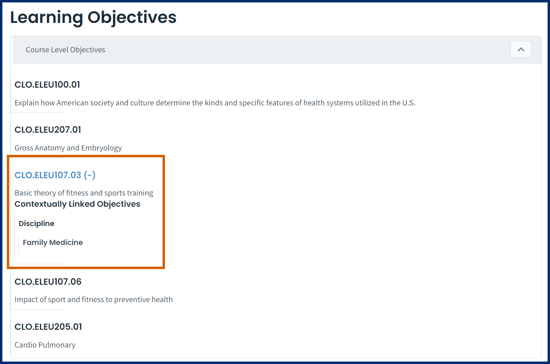
Note: The Learning Objectives page does not display linkages between tags made in Admin > Manage Curriculum.
MCC Presentations
Page Type: Course Content
- Assessment title and description
- Weight towards the course total
- Due date (if provided)
- Grade release date (if provided)
- Drop box (this provide learners with a link to go to the dropbox assignment)
Manage Notices
Page Type: Course Content
Edit Course Setup Information from the Course Website
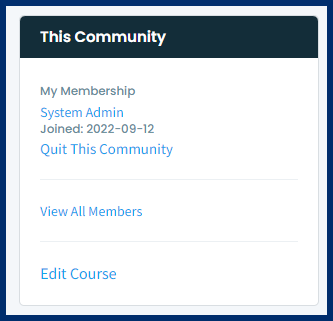
Course Website Options
Administrator Settings
Note: Those with Administrator permissions on a community, regardless of their group:role permissions in an organization, can edit pages in the community and control community settings and permissions.
Audience Settings