![elentra_logo_Blue-and-Black-3.png]](https://help.elentra.com/hs-fs/hubfs/elentra_logo_Blue-and-Black-3.png?height=40&name=elentra_logo_Blue-and-Black-3.png)
Generate and use a summary
A summary of assessment comments can be generated from the Comments tab of the Learner Dashboard. Learners see their own comments; reviewers see the comments of the learner whose dashboard is open.
Generate a summary
- Open the Learner Dashboard and select the Comments tab.
- Optional: set the filters under Filter options and select Apply filters. The summary covers only the comments shown.
- In the AI Assistant summary section, select Generate summary. The text of the comments shown is sent to the AI Assistant service, and nothing is added to the record.
- Wait for the summary. A message shows the number of comments being summarized and usually takes a few seconds. Select Cancel to stop.
Read the summary
A line at the top shows when the summary was generated, how many comments it is based on, how many preceptors wrote them, and the dates covered.
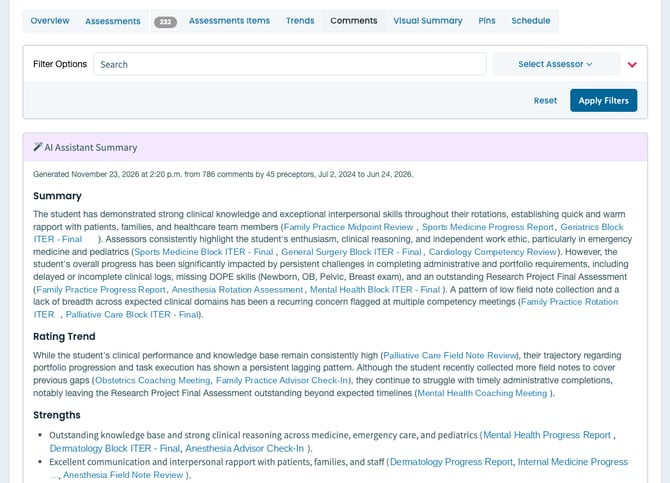
The summary then has five parts:
- Summary. An overview of the feedback in the comments shown.
- Rating Trend. How performance changed over time, with source links.
- Strengths. What the comments praise, as short points.
- Areas to Develop. What the comments say needs more work, as short points.
- Suggested Next Steps. Suggestions for what to work on next, with source links.
Source links appear inline after each point and show the assessment form name, shortened with an ellipsis when it is long. A note under the summary states that it is AI-generated, can be inaccurate or miss context, and is not part of the official assessment record.
Check a point against its sources
- Select a source link, for example one showing a form name and date.
- The matching comment is highlighted and marked Source for AI summary.
- Select Back to AI summary to return to the same place.
The original comments stay on the page below the summary and can be read in full at any time.
Work with a summary
- Rate it. Under Was this summary helpful?, select Yes or No. Ratings help improve summaries.
- Copy it. Select the copy button to place the summary text on the clipboard.
- Regenerate it. Select Regenerate to create a new summary for the comments shown.
- Collapse it. Use the arrow beside the AI Assistant summary heading to hide or show the panel.
Change the comments, change the summary. After a filter is changed and applied, generate a new summary so it matches the comments shown.
Leaving the page. A summary is not saved. Leaving the Comments tab clears it, and a new one must be generated on return.