![elentra_logo_Blue-and-Black-3.png]](https://help.elentra.com/hs-fs/hubfs/elentra_logo_Blue-and-Black-3.png?height=40&name=elentra_logo_Blue-and-Black-3.png)
Article Content
This article covers the following topics. Click on the topic to go to that section of the article.
Team-Based Learning Overview
Team-Based Learning (TBL) is an evidence-based teaching strategy designed to promote active learning, collaboration, and critical thinking through structured team activities. In Elentra, the Team-Based Learning module streamlines the facilitation of these sessions by supporting the key phases of TBL: preparation, individual and team readiness assurance testing (iRAT/tRAT), and team application exercises.
The TBL module in Elentra is built using the Exams and Events modules. This means that TBL sessions are scheduled as Events in the calendar, and the associated readiness assurance tests are delivered through the Exams module. Understanding this relationship helps facilitators navigate the setup and delivery of their TBL sessions more effectively.
This article is intended for faculty facilitators responsible for delivering TBL sessions in Elentra. It provides step-by-step guidance on how to manage and facilitate your event, including how to navigate the TBL interface, monitor learner progress, review team responses, and provide feedback during or after the session.
Before facilitating a TBL event, the facilitator must have Content-level access to the event. This may mean that the facilitator has to be added to the event as a "teacher" depending on their Elentra permission level. Please note that the Faculty:Faculty permission level does not allow for content level access even if those users are added to an event as a "teacher".

Facilitate a TBL Event
Once an event has been configured as a Team-Based Learning (TBL) event, the administrator view of the event (e.g., Administrator, Director, or Teacher view) will include an additional TBL tab. This tab serves as the control center for the facilitator, providing access to all tools needed to run the session. From this tab, the facilitator can start the iRAT and g/tRAT assessments and monitor learner progress in real time during the exams.
To start and monitor a TBL session, complete the following steps:
Step 1: Open the TBL event in Elentra
To access the TBL event in Administrator View (e.g., Administrator, Coordinator, Director, or Teacher View). Then, navigate to the TBL tab.
Step 2: Starting the Exam
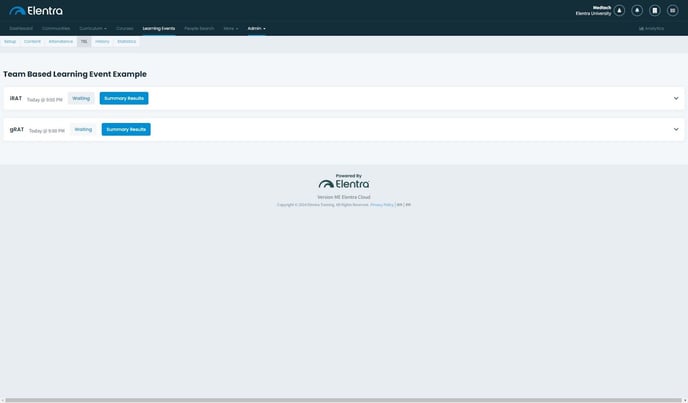
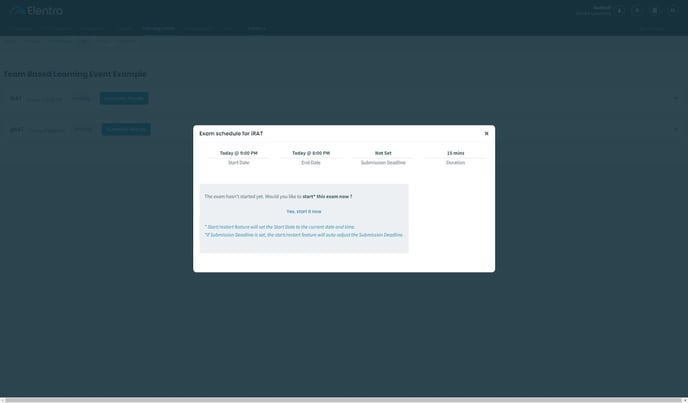
In a typical TBL session, the iRAT is administered before the g/tRAT. To begin an exam, click the "Progress Status" button (which will display "Waiting," "In Progress," or "Ended"). A modal window will appear, allowing you to initiate the exam, track remaining time, or extend an ongoing exam's duration. To start the exam immediately, click "Yes, start it now." The exam will then become accessible to students.
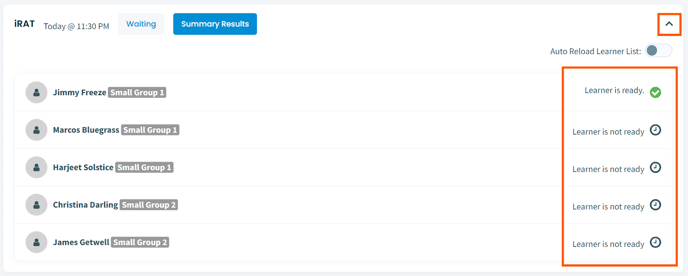
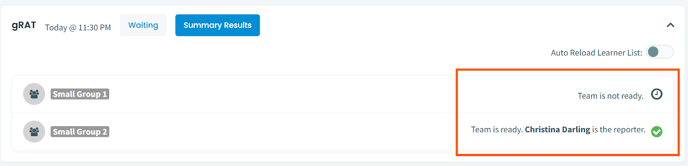
Tip: You can click the down-facing arrow on each exam card to see if students are ready (they have opened the event in Elentra). Toggle the "Auto-Reload Learner List" option on to have this information refresh without refreshing the browser page.
Step 3: Monitor Student Progress
To monitor student progress while they are taking the exam click on the “Summary Results” button. You will be able to see how a student or group is progressing and performing on the iRAT and g/tRAT, respectively. Enable the “auto refresh” feature to ensure that you get live updates during the exam. 
Summary Results for a g/tRAT will display in a filterable table, click a column header to apply filters as desired. This table will populate once learners start taking the exam. You may need to refresh the page to see up to date results.
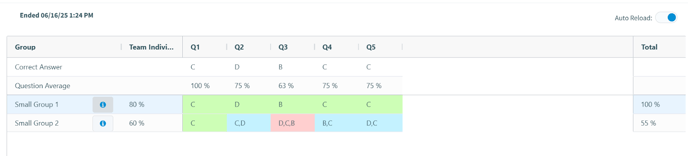
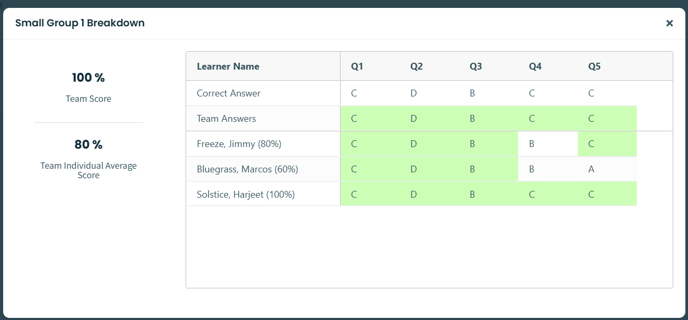
Selecting the information icon from the g/tRAT Summary will open a pop-up modal where you can see the team score, team individual average score and each learner’s individual scores and answers.