![elentra_logo_Blue-and-Black-3.png]](https://help.elentra.com/hs-fs/hubfs/elentra_logo_Blue-and-Black-3.png?height=40&name=elentra_logo_Blue-and-Black-3.png)
External Assessors Overview
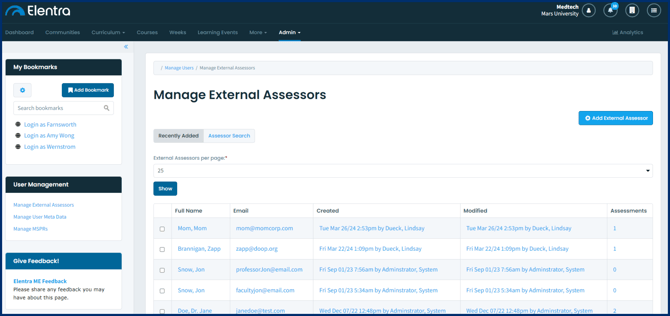
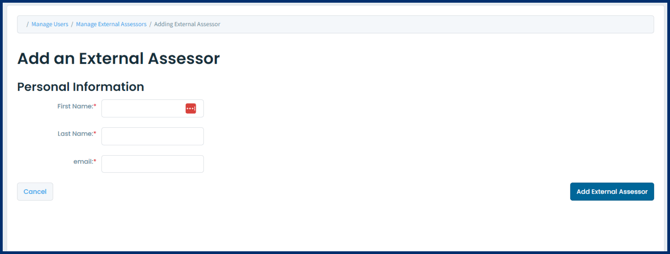
Within Manage Users
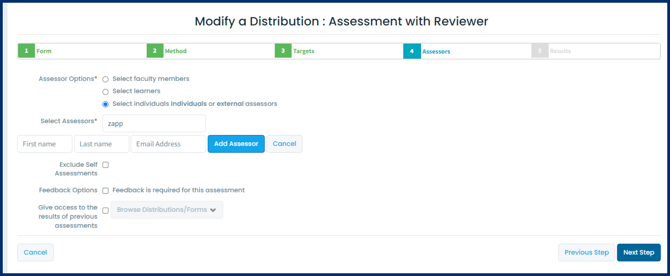
Within a Distribution Setup
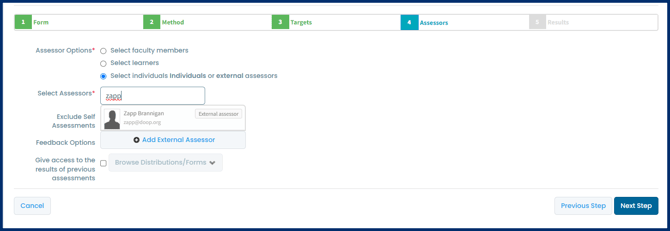
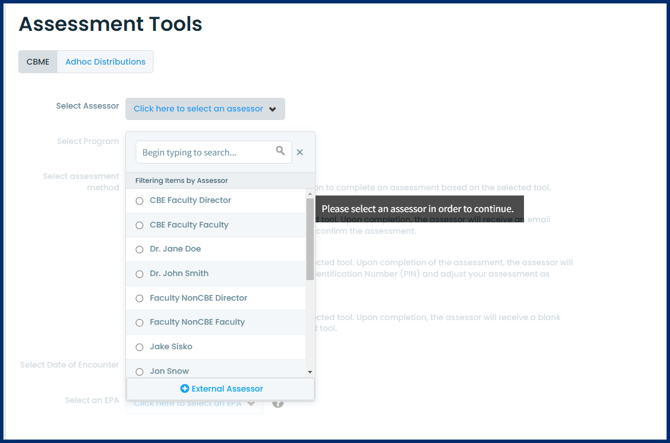
When Initiating an Assessment
Note: Allowing learners to add external assessors when initiating a task is an option controlled via a database setting (cbme_ondemand_start_assessment_add_assessor). To adjust this setting for your organization, contact Elentra Support.
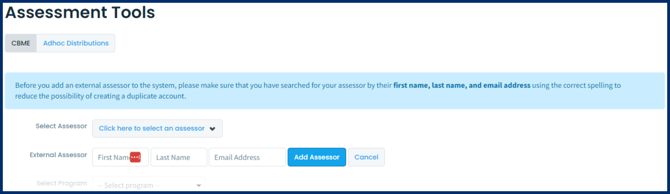

Note: Elentra does not automatically convert an external assessor record into a full Elentra user account. If an external assessor already has an internal account, see Merge an External Assessor into an Internal User. For other account changes, contact Elentra Support.
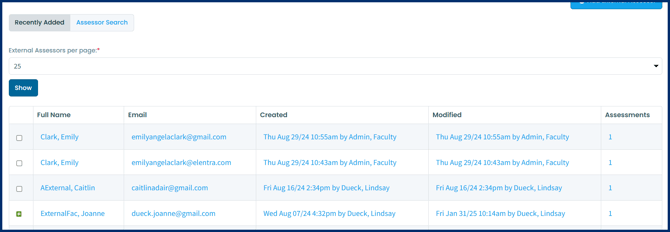
- Control how many assessors are displayed on the page.
- Edit an assessor's name or email address by clicking on the assessor's name.
- Delete an external assessor to prevent future task assignment.
- Click on the number in the assessments column to view assessments completed by that assessor.
- If an assessor has been deleted, there will be no link to their assessments.
- Switch to the Assessor Search tab to search for a specific external assessor.
Deleted external assessors will not be removed from the interface, but will no longer be available for use in distributions. Deleted external assessors will have a green + button beside their name, which when clicked will allow you to re-add the external assessor profile.
Merge an External Assessor into an Internal User
When an external assessor also has an internal Elentra account, administrators can merge the external assessor record into the internal user so that all of the assessor's work is held under one account.
Users with permissions to manage users can merge external assessors.
Step 1: Navigate to Admin > Manage Users. From the User Management card in the left sidebar, click Manage External Assessors, then click Merge into Internal Assessor to open the merge tool.
Step 2: Under Internal User, select the Elentra account the external assessor's work will belong to.
Step 3: Under External Assessors, search by name or email and click Add for each external assessor record that belongs to this user. Each record shows its number of completed, in progress, and not started tasks.
Step 4: Review the selected records. Click View assessments to check an account's assessments.
Step 5: Click Merge External Assessor. The button label shows how many records will be merged (for example, "Merge 1 External Assessor").
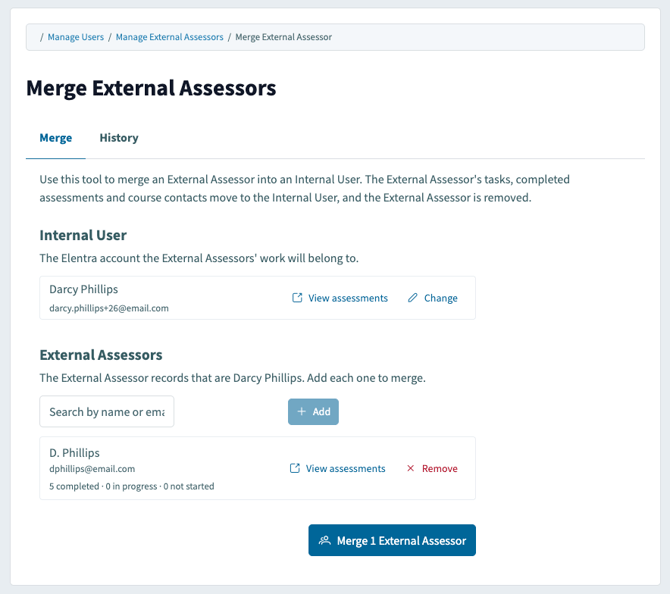
After the merge, the external assessor's tasks, completed assessments, and course contacts belong to the internal user and appear under that user in reporting. The external assessor record is removed. Past merges are listed on the History tab, including who performed each merge, when, and which accounts were merged.