![elentra_logo_Blue-and-Black-3.png]](https://help.elentra.com/hs-fs/hubfs/elentra_logo_Blue-and-Black-3.png?height=40&name=elentra_logo_Blue-and-Black-3.png)
Article Content
This article covers the following topics. Click on the topic to go to that section of the article.
- Introduction
- Course Requirements
- Learning Event Requirements
- Exam Requirements
- Exam Post Requirements
Introduction
To successfully run a Team-Based Learning (TBL) session in Elentra, several components must be properly configured within the course. These configurations involve setting up course prerequisites, the learning event itself, the associated exams (iRAT, g/tRAT, and Application Exercise), and the necessary exam posts. This article breaks down the required configuration steps in each section: Course Requirements, Learning Event Requirements, Exam Requirements, and Exam Post Requirements.

Course Requirements
The Team-Based Learning (TBL) feature relies on course groups. To use the TBL tool effectively in Elentra, you must first create course groups within the course where you plan to run the TBL session. For information on setting up course groups, see the Knowledge Base article here.

Learning Event Requirements
A learning event is required to run a TBL session and deliver the associated TBL exams. When creating a learning event for a TBL session, configure the TBL event as follows.
Event Setup Page
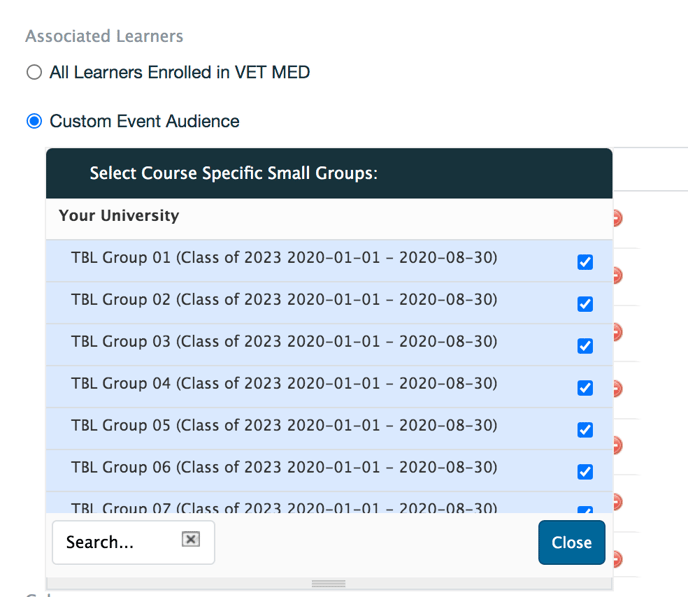
- Event Audience: When setting the event audience under the "Associated Learners" section you must select Custom Event Audience > Course Specific Small Groups and choose the appropriate course groups then click "Close". You must first have course groups configured in the course to be able to choose course groups at this step.
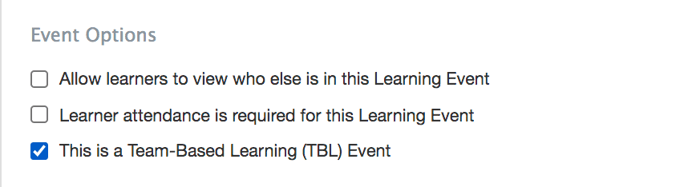
- Configure Event Options: In the "Event Options" section, you must select the "This is a Team-Based Learning (TBL) Event" checkbox. (This is what will make the TBL tab appear to the administrators and faculty who lead the TBL event.) If you do not see the TBL checkbox it may be hidden in your Elentra instance. Please contact Elentra Support to have it enabled.
Ensure all other event configuration is set up as required. Also do not forget to assign the TBL facilitator as a teacher on the TBL event if they don't already have access to the event or need to be officially listed as an instructor for the event.
Exam Requirements
Create exams for the iRAT, g/tRAT, and MCQ Application Exercise as needed. You can configure the iRAT and g/tRAT as a single exam with two separate exam posts, or as two distinct exams, each with its own exam post. Configure the exam in the following way. If you are not familiar with Exams in Elentra, please consult the Exams section of the Admin User Guide.Exam Question Setup
- The TBL module currently supports exams that contain only multiple choice questions. Other question types are not supported.
- Elentra expects that multiple choice questions will have exactly four answer choices and be valued at 1 point per question. You cannot have more or less than four answer choices on your multiple choice questions with a TBL exam.
Information & Settings Tab of an Exam
- For an exam that will be used as a g/tRAT make sure that on the "Information & Settings" tab of the exam you indicate that exams should be displayed with one question per page.
- Do NOT choose to randomize questions or answers.
Note: For Application Exercises, exams work best when they contain a single question. When the preferred answer is revealed, all answers on the exam become visible. If you typically design multi-part questions that build on each other and want learners to see the answer to the first question before proceeding to the next, you will need to either create and post multiple exams, or provide answers sequentially outside of the Elentra interface without using the in-system answer reveal.
Exam Post Requirements
Create separate posts for the iRAT, g/tRAT, and Application Exercise exams. The exam post setup wizard's settings for each step are detailed below:
| Step 1: Exam | ||||
|
Exam Post Setting(s) |
iRAT |
g/tRAT |
Application Exercise MCQ |
Notes |
|
Title |
Title Suggestion: Include iRAT as part of the post title |
Title Suggestion: Include gRAT or tRAT as part of the post title |
Title Suggestion: Include application name or number as part of the post title |
|
| Step 2: Settings | ||||
|
Exam Post Setting(s) |
iRAT |
g/tRAT |
Application Exercise MCQ |
Notes |
|
Start Date/Time |
1 hr. past end of learning event |
1 hr. past end of learning event |
1 hr. past end of learning event |
The start date & time will automatically update when the instructor starts the TBL. setting the start time one hour past the end of the learning event allows the TBL facilitator to open the exam when they choose to instead of it starting at an automatically scheduled time. |
|
End Date/Time |
Equal to the learning event |
Equal to the learning event |
Equal to the learning event |
The end date & time will automatically update when the TBL facilitator starts the exam. |
|
Time Frame |
During |
During |
During |
|
|
Time Limit |
Manually enter this as per your school policy. This is the total time for the entire RAT, not per question. |
Manually enter this as per your school policy. This is the total time for the entire RAT, not per question. |
Manually enter this as per your school policy. This is the total time for the entire application exercise, not per question. |
|
|
Auto Submit |
Select this checkbox |
Select this checkbox |
Select this checkbox |
|
|
Hide Exam From Learners |
Select this checkbox so learners will only access the exam when the TBL module is launched. |
Select this checkbox so learners will only access the exam when the TBL module is launched. |
Select this checkbox so learners will only access the exam when the TBL module is launched. |
|
|
Attempts |
1 |
1 |
1 |
|
|
Free Navigation |
Leave checkbox selected |
Leave checkbox selected |
Leave checkbox selected |
|
| Step 3: Audience | ||||
|
Exam Post Setting(s) |
iRAT |
g/tRAT |
Application Exercise MCQ |
Notes |
|
Audience Option |
Select the option This exam is taken by individuals in the event audience |
Select This exam is taken by course groups in the event audience. Additionally, select the checkbox to apply the same grade to all learners in the selected groups. |
Select This exam is intended as a group-based application exercise in the learning event. Additionally, select the checkbox to apply the same grade to all learners in the selected groups. |
|
|
Step 4: Feedback |
||||
|
Exam Post Setting(s) |
iRAT |
g/tRAT |
Application Exercise MCQ |
Notes |
|
Release Immediate Feedback |
Leave this option unselected |
Select this option to allow for immediate feedback to the learner |
Leave this option unselected |
|
|
Require Response |
N/A |
Yes |
N/A |
|
|
Release Score |
Leave this option unselection |
Select Release learners' scores after they have submitted |
Select Release learners' scores after they have submitted |
|
Information on Scoring g/tRATs in the TBL Module
Scoring of g/tRAT exams is based on diminishing returns. The more attempts a group takes to select the correct answer, the lower their score.
The default grading is 4-2-1-0 (i.e., if a group gets it right on the first try, they get 4 points, on the second try, they get 2 points, etc.). Scoring can be adjusted for your Elentra instance if needed by the Elentra Team. Please contact Elentra Support if you would like to change the scoring for the four answer choices.