![elentra_logo_Blue-and-Black-3.png]](https://help.elentra.com/hs-fs/hubfs/elentra_logo_Blue-and-Black-3.png?height=40&name=elentra_logo_Blue-and-Black-3.png)
Article Contents
This article covers the following topics. Click on the topic to go to that section of the article.
Overview
There are several places in Elentra that contain course-related reports:
- The Reports tab on each course (if enabled)
- System Reports
- Analytics
System Reports and Analytics sections of Elentra are only accessible to Medtech:Admin and Staff:Admin users. The reports on a course's Reports tab are accessible to those users, as well as the Faculty:Director and Staff:PCoordinator users associated with the course. Before you can access any reports for a course on the Reports tab, you must have enabled the reports on the course's Setup tab. Once a report has been enabled, the Reports tab will appear within the course.

Course Reports Tab
2 reports can be enabled per course, from the course's Setup tab:
- Attendance Report
- My Teachers
Additionally, a list of enrolled learners can be accessed & downloaded to a CSV from the course's Enrolment tab.
Attendance Report
If attendance has been recorded in the associated Attendance tab of events associated with the course/program (in the Manage Events module), use the Attendance Report to generate and download a CSV containing student attendance at events.
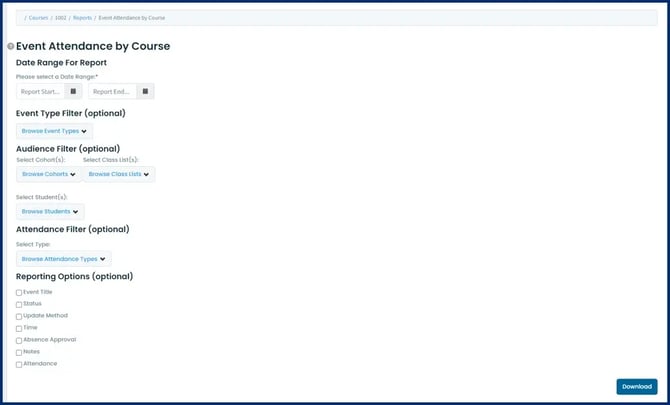
The report is generated as a CSV file and will include a list of students, the included events (with dates), attendance status per student per event, a student total and course total, and a student total attendance percentage.
My Teachers
- To generate the list of teachers select the date range of events you want to pull from, then click the Generate Teacher List button. All teachers in the list will automatically be selected.
- Clicking on the Mail Selected Teachers button will open your default email client on your computer and address the email to all of the teachers in the list. Alternatively you can click on the down arrow next to the Mail Selected Teachers button to copy the list of emails to your computer's clipboard.
System Reports
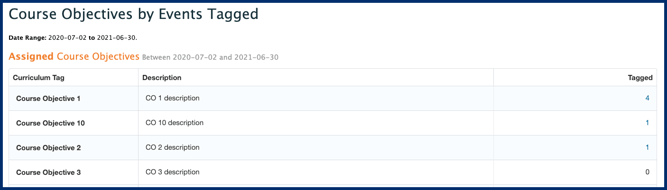
Within Admin> System Reports, there is a section called Course Reports. It contains one report, "Course Objectives by Events Tagged (COBET)".
Note: This report is most useful if your curriculum framework has you assign curriculum tags to a course and those same tags to specific events. If you actually have separate tag sets for course and event objectives, you will only see useful information in the Non-Assigned Tags section of this report.
-
Tags in the Assigned Course Objective list are those tags that were assigned to a course.
-
Click the number under the Tagged column to see a list of the events where the curriculum tag was also assigned.
-
Tags in the Non-Assigned Tagged Objectives list are those tags that were not assigned to the course but were assigned to specific learning events.
-
Results can be downloaded as PDF or CSV.
- For CSV downloads, three separate files may download (Assigned MCC Presentations, Attached Objectives, and Non-Attached Objectives).
- For PDF downloads, information may be separated into Assigned MCC Presentations, Assigned Tagged Objectives, and Non-Assigned Tagged Objective