![elentra_logo_Blue-and-Black-3.png]](https://help.elentra.com/hs-fs/hubfs/elentra_logo_Blue-and-Black-3.png?height=40&name=elentra_logo_Blue-and-Black-3.png)
Article Content
This article covers the following topics. Click on the topic to go to that section of the article.
Introduction
The Assessment Plan Builder visualizes a learner’s progress towards meeting curriculum requirements in a CBE-enabled course or organization. Contact Elentra Support to request this update.
Assessment Plans allow tracking of:
- The number of different assessors per curriculum objective
- The number of completed assessments per curriculum objective
- The number of completed assessments that meet clinical contextual variable requirements
- The number of completed assessments that meet other form item requirements
Programs may configure requirements for any CBE tag set that is tracked on assessment forms. Assessment plans provide a means of mapping completed assessment data onto achievement targets during the course of a learner’s training.
- This feature is useful for programs who have target requirements for a specific competency or curriculum tag set such as an Entrustable Professional Activity.
- When an Assessment Plan is set up for a course/program, a series of assessment requirements will be published in the learner CBE dashboards for a program.
- Primarily used to track progress made within clinical context requirements, featured in procedural professional activities, but may also be used to confirm the number of different observers who provided input on a particular curriculum objective.
- The Assessment Plan Builder allows learners and program leadership to set up a series of requirements for an objective, which are then visualized in the learner dashboard. The learner’s progress towards these requirements appear as incomplete, in progress or complete.
- Program Directors, Competence Committee members and Program Coordinators can override an individual learner’s incomplete assessment plan by marking that specific competency or EPA as approved. If a curriculum includes stage level progression, the program can approve an entire stage to indicate a learner’s promotion status.

Creating an Assessment Plan
You must be in an administrative role and have access to a specific course or program to use the Assessment Plan Builder. Do the following to add a new assessment plan.
Note: Within the context of the Assessment Plan Builder, the terms assessment forms and assessment tools are used interchangeably. You must have your assessment forms built and published prior to building an assessment plan.
Step 1: Navigate to Admin > Manage Courses/Programs.
Step 2: Beside the appropriate course/program name, click the gear icon or open the course and navigate to the CBE tab.
Step 3: Open the Assessment Plans tab.
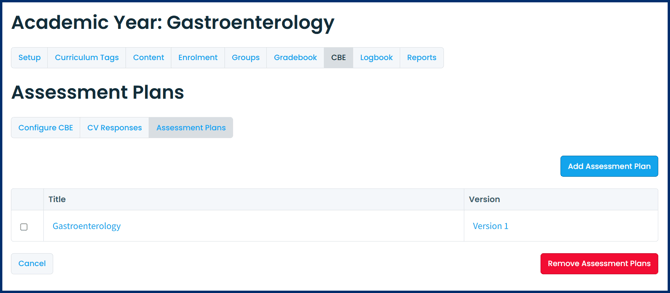
Step 4: Click the Add Assessment Plan button.
When you add a new assessment plan, you are creating a container for all of the individual assessment plans for the primary CBE tag set in a course/program’s CBE curriculum. If your primary CBE tags are Entrustable Professional Activities, your new assessment plan will allow you to set unique completion requirements for each EPA.
Each assessment plan relates to a specific curriculum version. If you have multiple versions of your CBE curriculum, you can create different assessment plans for each version. After clicking on the "Add Assessment Plan" button, select the appropriate version and create a title. Adding a description is optional, but can be helpful when tracking changes, minor curriculum version edits, or Competence Committee decisions about recommended completion targets for learners.
Step 5: Click on the Save Plan button.
You will be directed to the new assessment plan where you can further configure the requirements for each included curriculum tag.
Configure Curriculum Tag Requirements
Each curriculum tag included in the assessment plan has a circular icon that indicates publication status.
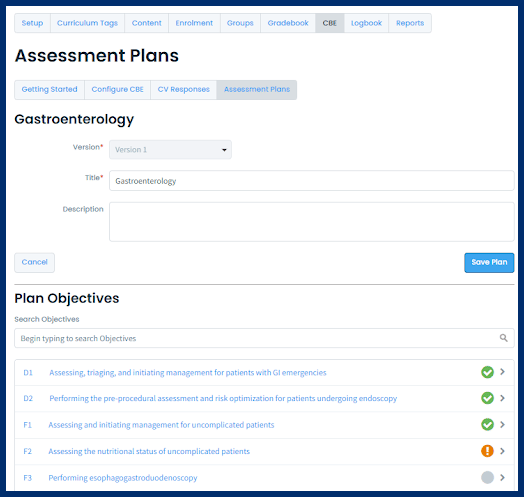
- A green checkmark indicates that an assessment plan has been published for this curriculum tag.
- A grey circle indicates that no assessment plans have been started for this curriculum tag.
- An orange exclamation mark indicates that an assessment plan has been saved in draft mode for this curriculum tag. Changes may need to be made before publishing.
Create/Edit Curriculum Tag Requirements
To create or edit the curriculum tag requirements do the following.
Step 1: To create or edit the requirements for a particular curriculum tag in the assessment plan click on its hyperlinked name.
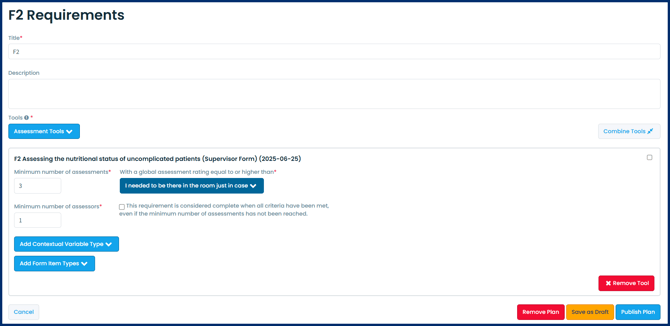
Step 2: Add a title and an optional description. These titles and descriptions are for administrative purposes only and do not appear in the CBE dashboards.
Step 3: Select the tool(s) you wish to include in the assessment plan by clicking the Assessment Tools drop-down menu. The displayed assessment tools will include all published assessment forms that have been mapped to the relevant CBE curriculum tag. Deleted assessment forms will only appear in the list if they have completed data associated with them.
- All forms that have been deleted or retired will have both the start and end date of their publication associated with them.
- Active forms will only indicate the single date of their publication.
- Draft forms will not appear in the assessment plan builder.
You can either build one plan for each tool (form), or select multiple tools (forms) and create one set of requirements for the selected tools.
Step 4: Configure the assessment plan tag requirement settings. Each setting is outlined below.
Minimum number of assessments (Mandatory)
Enter the minimum number of assessments required for the objective (e.g. EPA or other CBE tag set) using this tool. The “minimum number of assessments” setting is contingent upon successful achievement of the global entrustment rating requirement in the assessment plan. All completed assessments must therefore be equal or higher than the selected rating scale response in order to count towards a learner’s progress in the CBE dashboard.
While the minimum number of assessments is a mandatory field, programs have the option to override the total completion target if a learner has met all other criteria within the assessment plan. To enable this option, select the checkbox for: “This requirement is considered complete when all criteria have been met, even if the minimum number of assessments has not been reached.”
Rating scale responses (Mandatory)
Indicate an achievement setting for “With a global assessment rating equal to or higher than” minimum required level a learner must achieve on the global rating scale for the objective. The global rating scale for each form usually indicates the level of entrustment or supervision for that specific observation. The rating scale achievement setting is a mandatory field for an assessment plan, but if set at the lowest rating, all observations for this objective will count as achieved.
Minimum number of assessors (Mandatory)
Enter the minimum number of assessors required to complete assessments on this EPA.
Contextual Variable Requirement Types
Elentra’s CBE features utilize Contextual Variables to capture the clinical context of assessments and field notes, functioning much like an integrated procedure log within forms and dashboards.
These curriculum tags are applied to CBE assessment forms and templates to track specific clinical data points.
Furthermore, contextual variables are managed and shared centrally across various courses and programs.
When configuring an assessment plan tag requirements select which contextual variables you need to track for this form. Only the contextual variable categories that are on the selected form will be loaded in this dropdown. Depending on the contextual variable type you selected, you will have different options to track the responses.
There are four different ways to track contextual variable responses with the assessment plan builder:
To start building a set of requirements for an objective, choose an option from the Add Context Variable Type menu. The type of Contextual Variable refers to the way that context variable may be configured in the assessment plan, not the category of context variable tracked on an assessment form. Any contextual variable included on a published form can be configured in each context variable type menu.
An assessment plan may accommodate multiple contextual variable types for one single assessment tool or a combined bundle of assessment tools.
Spread
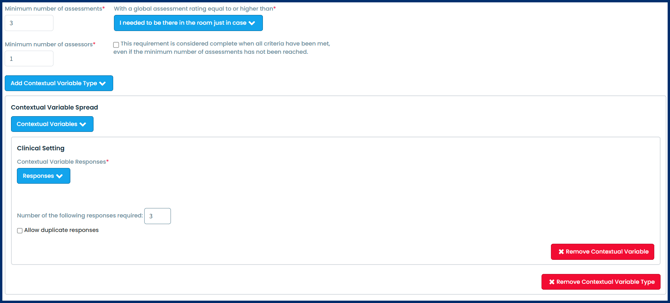
The spread contextual variable type allows a user to configure a subset of contextual variable responses and indicate how many responses are required from that list. Any completed assessment form that includes a contextual variable response from this list will count towards the requirement. By default, only unique responses count towards the spread requirement type. If the default spread option is configured, it will ensure that the learner has obtained a breath of experience or a variety of patient encounters within a certain clinical context.
The “allow duplicate responses” checkbox permits multiple numbers of the same contextual variable response to fulfill a requirement. This option allows a learner to fulfill the assessment plan with any combination options from a limited number of responses, and is appropriate for either/or requirements.
Some examples of instances where you might employ the Context Variable Spread option:
-
- A program would like to require that learners complete a variety of procedures tracked as contextual variable responses on an Entrustable Professional Activity.
- Learners need to obtain five assessments that were either directly observed or based on case presentation for a curriculum objective where ten total observations are required.
Specific
The Specific function allows you to select multiple contextual variable responses and indicate how many times each of the selected responses need to be assessed.
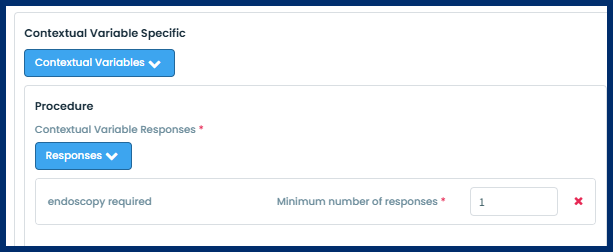
Some examples of instances where you might employ the Context Variable Spread option:
-
- A program would like to set a requirement that of ten total completed observations for an EPA, learners must obtain a specific number of cases that were high complexity.
- A program would like to set a requirement that of total completed observations for a primary competency, learners must obtain a number of observations that were with a specific type of observer/assessor.
Group (Specific)
By utilizing the Group Specific feature, you can define requirements for a chosen set of contextual variable (CV) responses, specifying the exact number of assessments required for each response to satisfy the assessment plan. This tool allows for the selection of responses across several groups within a single contextual variable.
The assessment plan builder integrates this grouping logic directly from the contextual variables, where users can organize responses into distinct sets.
To use the group specific feature the contextual variable groups must be configured in advance from the contextual variable groups feature within Admin > Manage Courses > CBE > CV Responses. To add a contextual variable group do the following.
Once the groups are configured you will then have the option to select the group under the group specific option in the assessment plan.
Group (Spread)
The Group Spread function allows you to select contextual variable groups and indicate how many unique responses from the group need to be assessed to meet the plan. You can add each response from the group individually as needed. The learner needs to have a CV response present in their assessments just once to start meeting the requirement. The Group Spread CV option allows for configuration of multiple tag set groups from within the same contextual variable.
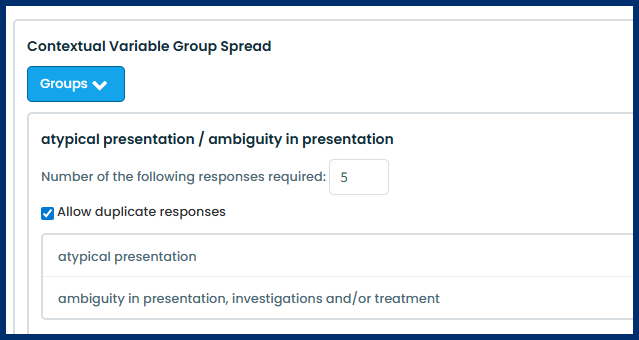
Some examples of instances where you might employ the Context Variable Group (Specific) option:
If a group of CVs is already tracked as a variety or spread requirement type, the group spread option will allow the user to configure a separate sub-category from that Context Variable. For example, three CV responses could be configured as one sub-group within the Case Type Context Variable on the form, and a different sub-group of Case Type responses could be configured as a unique requirement.
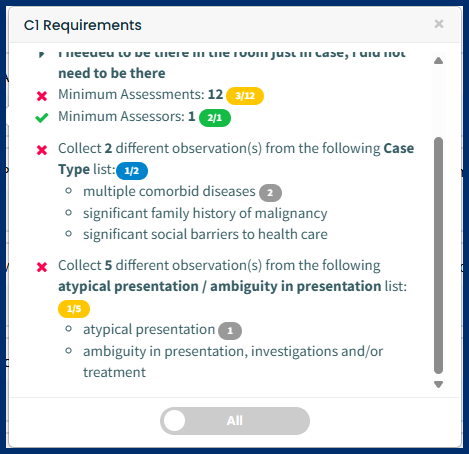
Combine Tools (Forms)
The combine tools feature allows you to combine multiple forms (i.e. assessment tools) within the same assessment plan, as long as the combined forms share the same clinical context variables and the same global rating scale option.
Once forms are combined, Contextual Variable requirement types may be configured for any CV responses, scales, or form items shared across all forms. The assessment plan for that curriculum objective will track aggregate observations for data completed on any of the combined tools.
To combine tools do the following.
Some examples of instances where you might employ the combine tools option:
-
- A program/course has published a new assessment form version in order to roll out minor edits to the curriculum. The program needs to ensure that learner dashboards track observations on both the old and the new form versions.
- A program requires that learners obtain seven EPA observations, but they can be documented on either a supervisor form template or a field note form template, which are both mapped to that EPA.
Note on procedure forms:
For procedure forms, a completion of any of the procedures related to the selected form (built from the same template), will count towards meeting the "minimum number of assessments" and "minimum number of assessors" requirements. You may define additional requirements using the "Procedure" variable when your assessment plans require it. Otherwise, you do not need to select any specific procedures.
Dependencies within Assessment Plan CV responses
Another way to combine requirements is to set a dependency between contextual variable. Do the following to set a dependency between contextual variables.
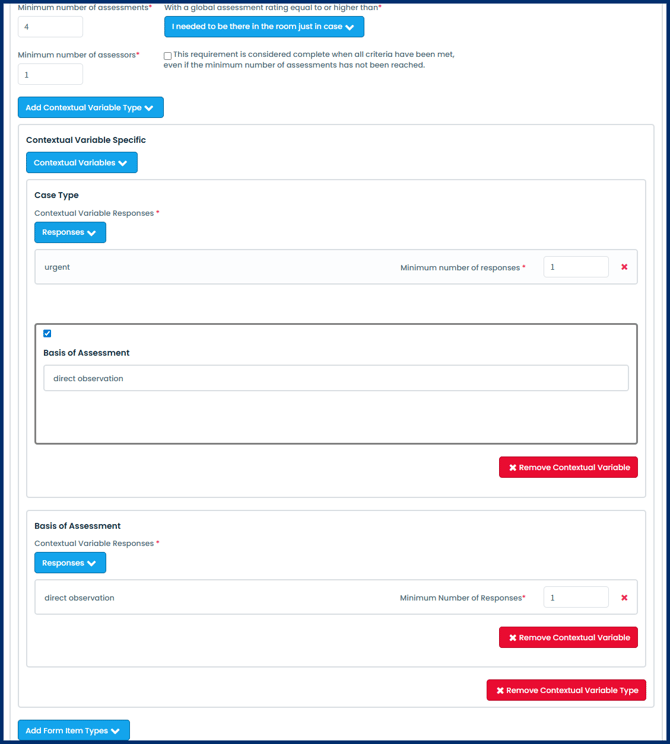
Step 1: When on the creating/editing the tag requirements for the assessment plan, after adding a contextual variable type, click the Contextual Variable button and select multiple contextual variables. You will now see both contextual variables display on each other's cards.
Step 2: Use the dependencies checkbox to have one CV as a contingent requirement for another (the one where the option for dependencies is selected). After one CV is a dependency, the corresponding CV will disappear from the other CV card.
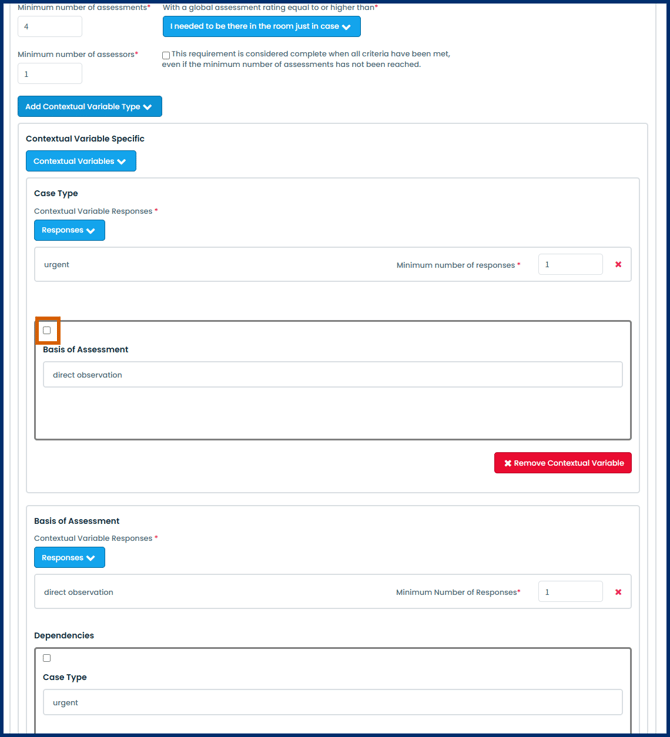
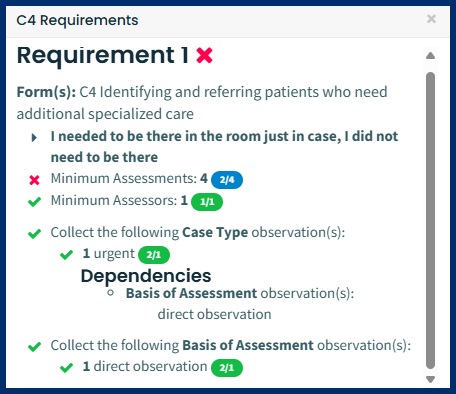
The view on the CBE program and learner dashboards will reflect these assessment plan requirements grouped together if they are used as a set of dependencies as seen below.
Form Item Types
The last option in the assessment plan builder allows a program to set requirements for any curriculum tags or scales items other than the clinical contextual variables. Rather than setting a certain number of targets for a response, similar to a procedure log, the form item configuration places emphasis on target achievement towards the rating scale type used on a form item.
Some examples of instances where you might employ the form item option:
-
- A program would like to ensure that learners achieve at least one observation of a competency tracked on the form that meets a target rating scale.
- Learners are expected to meet certain rating scale targets across a spread of competencies.
Step 5: Publish the plan
Once you have entered all of the necessary curriculum tag requirements, you can either click the Save Draft button to return to it later or click the Publish Plan button. Only published plans will appear on CBE program and learner dashboards. Published plans can be re-opened, edited and published again as often as needed. The only impact to learner data would be an interruption to data visualization while the assessment plan is in draft status.